
Team subscription
With a Standard or Pro plan you can give teammates a seat on your subscription. They get the same plan without a card or a subscription of their own, and everything is billed to your account. Prices per user are on the pricing page.
Manage the team
Section titled “Manage the team”Open Settings ➤ Subscription ➤ Manage team or go to gpt.space/app/settings/team.
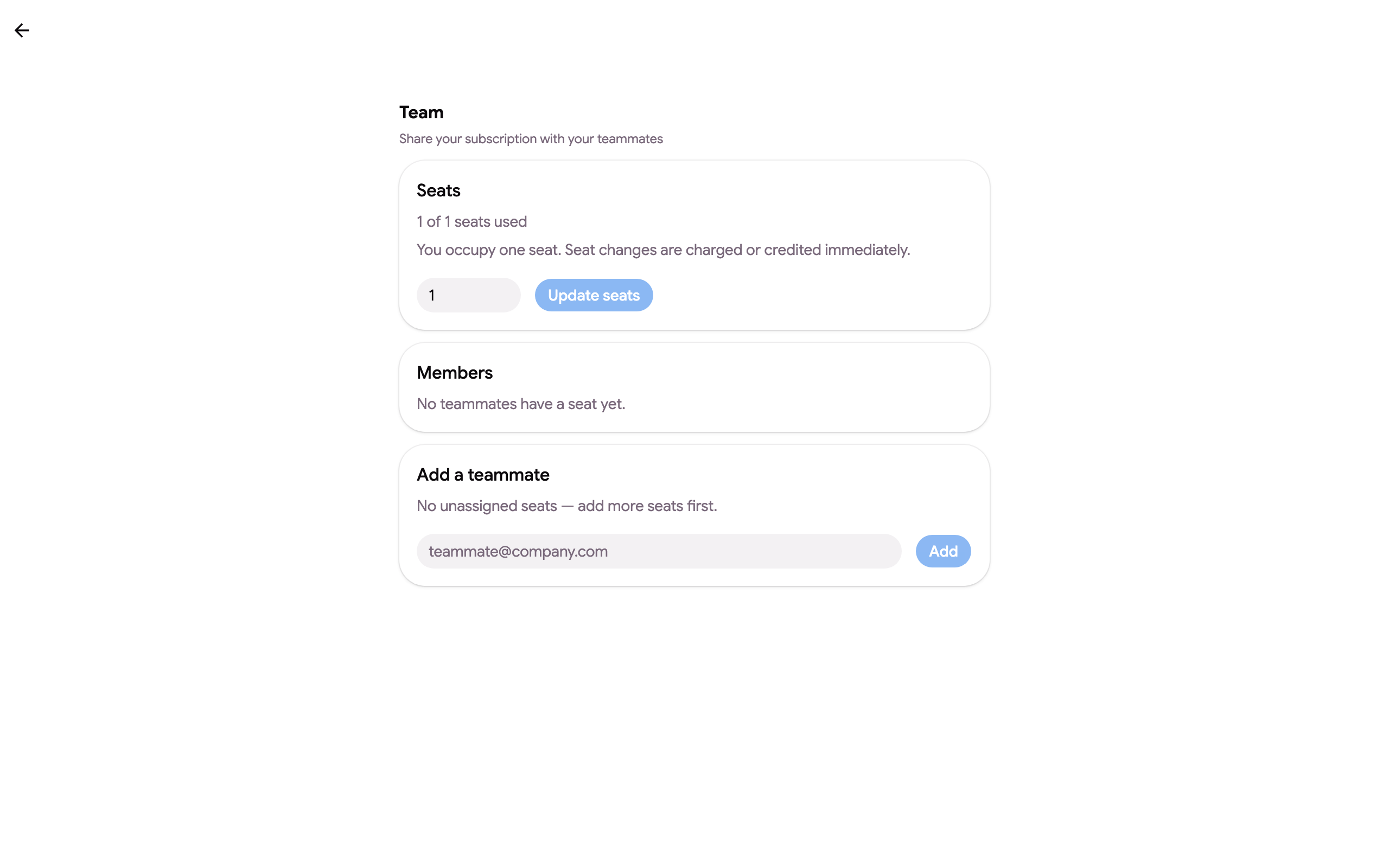
- Seats shows how many seats you have and use (you occupy one). Change the number and click Review change: the page shows what is charged or credited now and what the next invoice will be, and nothing happens until you click Confirm. Up to 100 seats.
- Members and usage lists the people with a seat, whether they have signed in yet (Invited) or are Active, when they last used the product, the credits each seat used this month and last, and the seat’s monthly cap. Remove frees the seat at once; Reassign hands it to another email; Resend invite sends the invitation email again. Export CSV downloads the table.
- Add a teammate: type an email and click Add. The person must have a free seat available; buy more seats first if needed. People from your company domain who already use GPT Workspace are suggested with one click.
Your teammates sign in to GPT Workspace with exactly the Google account you added (an alias does not carry the seat) and are on your plan at once. Their subscription page says “You are on a shared subscription managed by …”. A member’s plan is read from your subscription on every request, so a removed member is on the free plan immediately, and members follow your plan through renewals and plan changes without being re-added.
To limit what a seat may spend on your plan, set a monthly cap per member or a default for every seat. Rolling the add-on out to a whole company or school, including the admin install from the Google Workspace console, is covered in Deploy to your organization.
How invoicing works when adding members
Section titled “How invoicing works when adding members”You see the exact amount before confirming. Adding a seat charges immediately for the remaining time of your current period, and your next invoice includes the new number of seats.
Example: you start a yearly Pro plan for one user and add a second user 8 months later. You are charged immediately for one extra user for the remaining 4 months, and the next yearly invoice covers two users.
How invoicing works when removing members
Section titled “How invoicing works when removing members”Removing a seat credits your account for the unused time of that seat. The credit is deducted from your future invoices.
Example: with two users on a yearly plan, removing one after 8 months credits you the remaining 4 months of that seat.