
Downloading invoices
- Open gpt.space/app/settings/subscription, signed in with the account that pays.
- In the Manage subscription block, click Invoices & receipts: the Stripe billing portal opens. The same entry is in the account menu (your email, top right) on every page of the app, and on the page shown right after a payment.
- Under Invoice history, click an invoice to view it, then download the PDF invoice or receipt.
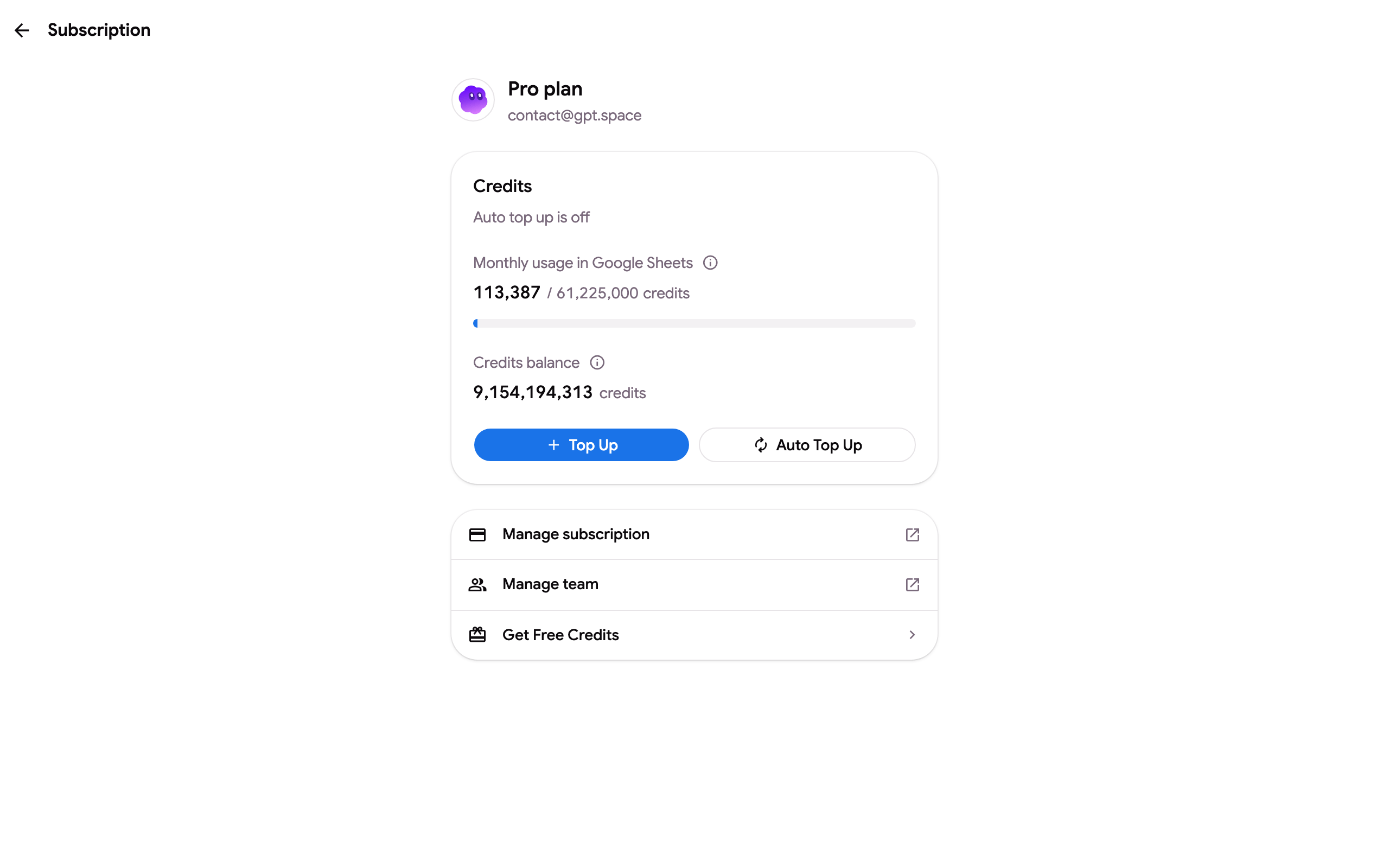
Every subscription payment, top-up and pay-per-usage charge has its own invoice. The invoices are also emailed to the billing email when the payment is made, from Stripe. Search your mailbox for “Your GPT Workspace receipt” if you need an old one.
Company name and VAT number on invoices
Section titled “Company name and VAT number on invoices”In the billing portal, click Billing information ➤ Update information and add the legal name, the address and the tax ID (VAT number). The details appear on every invoice issued afterwards. To have an already issued invoice re-issued with these details, write to contact@gpt.space with the invoice number or the date and amount.
Invoices sent to the accounting department
Section titled “Invoices sent to the accounting department”Change the billing email in the same Billing information section: receipts and invoices are then sent to that address, while the account keeps signing in with the Google account.
Invoices for another account or a lost receipt
Section titled “Invoices for another account or a lost receipt”If the payment was made from a Google account you no longer have, or you only have a card statement line (WWW.GPT.SPACE), send the date, the amount and the last four digits of the card to contact@gpt.space; we send the matching invoices. Tax forms and supplier documents for your accounting (company registration, bank details, tax residency certificate) are available on request at the same address.