
Sign in keeps sending me back to the sign-in page
You click Sign in with Google, pick your account, accept the permissions, and land on the sign-in page again. The sign-in finished on Google’s side but the browser could not keep the session. Work through the list in order; most loops stop at step 2.
1. Finish the Google consent in one go
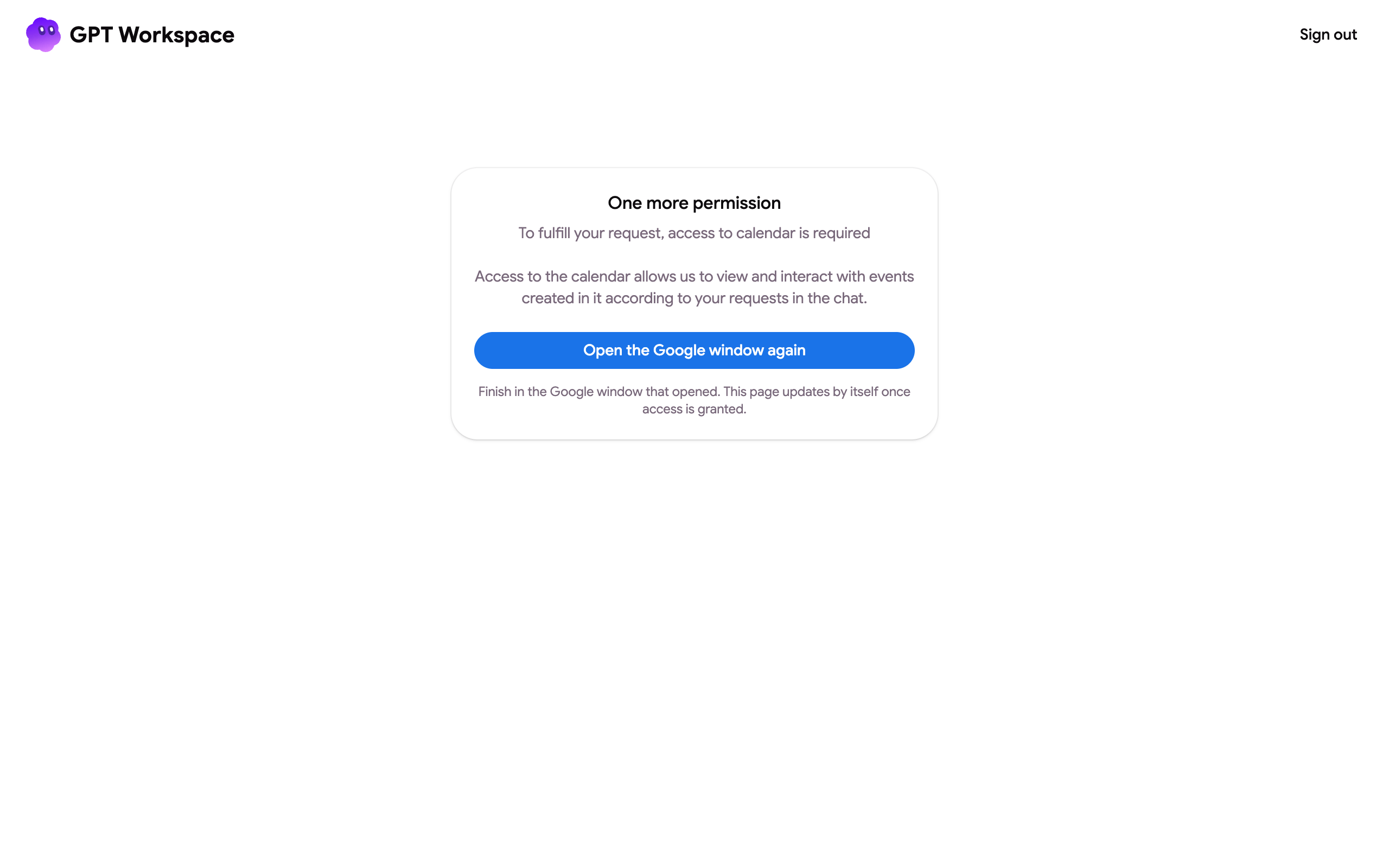
Section titled “1. Finish the Google consent in one go”The return from Google is valid for 10 minutes. If the consent screen stayed open longer, or if the tab was closed during the redirect, start again: close the tab, open gpt.space/app/signIn and complete the sign-in without pausing. Tick every permission checkbox on the Google screen; a refused permission also ends in a loop, see Google account permissions.
2. Clear the site data of GPT Workspace
Section titled “2. Clear the site data of GPT Workspace”An interrupted sign-in can leave the browser in a state where every new attempt is ignored.
- Open gpt.space/app/debug and click Clear cache.
- Or, in Chrome, open the page ➤ right-click ➤ Inspect ➤ Application tab ➤ Clear site data.
- Sign in again.
If that works in an incognito window but not in the normal one, an extension in the normal window (ad blocker, privacy or cookie extension, antivirus web shield) is blocking the session storage. Allow gpt.space in that extension.
3. Content filters and locked-down networks
Section titled “3. Content filters and locked-down networks”Web filters (for example Netfree, school or corporate proxies) can block the Google OAuth redirect or the api.gpt.space domain used after sign-in. Ask the filter administrator to allow gpt.space, gpt.space/app, api.gpt.space and accounts.google.com, or sign in from another network first and come back.
4. Several Google accounts
Section titled “4. Several Google accounts”Google returns the account that is active in the tab, which is not always the one you picked. Sign out of the other Google accounts in that browser or use a separate Chrome profile for the account you want, then sign in again. See I can’t install the extension.
5. Reset the Google connection
Section titled “5. Reset the Google connection”Open your Google account connections, click GPT Workspace ➤ Delete all connections, then sign in again and accept the permissions. Full steps in Authorization is required to perform that action.
In the add-on or the extension
Section titled “In the add-on or the extension”The add-on sidebar in Docs, Sheets and Slides and the Chrome side panel open their own sign-in. If they loop while the web app works, reload the Google page, then open Extensions ➤ GPT Workspace ➤ ▶️ Start again; for the extension, pin it and click its icon once to sign in.
Still stuck? Write to contact@gpt.space with your browser, the account email and whether an incognito window works.