
Get started: Google Chat app
The GPT Workspace app for Google Chat answers in a direct message or in any space where you mention it, with the same agent as the web chat: it can summarize a document, create a Google Doc, Sheet or Slides deck, find files, draft an email, schedule a meeting or add a task.
Add the app
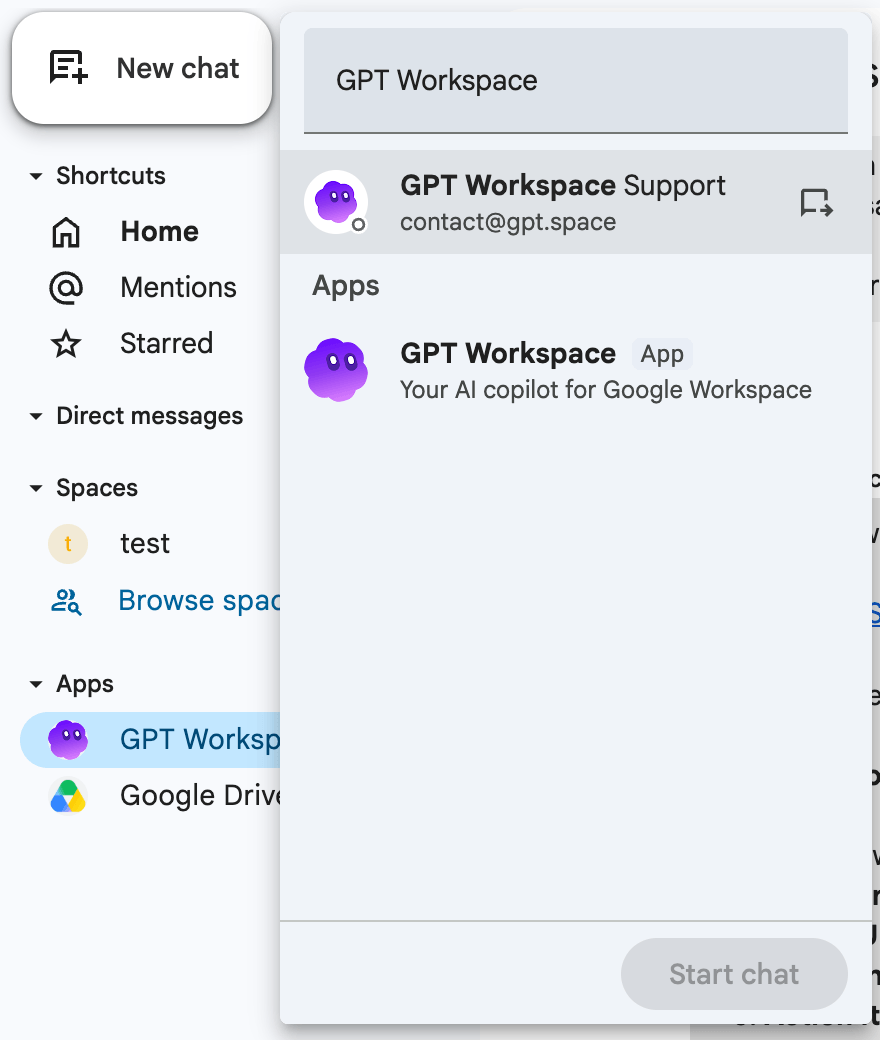
Section titled “Add the app”- In Google Chat, click + next to Direct messages or Spaces, then Find apps (or Browse apps).
- Search for GPT Workspace and click Chat to start a direct message, or Add to space.
The app is part of the GPT Workspace add-on on the Marketplace. A Workspace administrator can install it for the whole organization from the admin console.
You must be signed in to GPT Workspace with the same Google account at gpt.space/app. If you are not, the app answers “I could not identify your Google account. Please sign in to GPT Workspace at gpt.space/app first.”
Talk to it
Section titled “Talk to it”- In a direct message, just write your request.
- In a space, mention it:
@GPT Workspace summarize the latest release notes. The app replies in the thread.
The app first posts “⏳ Working on it…”, then replaces that message with the answer. Each space or thread keeps its own conversation history, titled “Google Chat ·
Commands
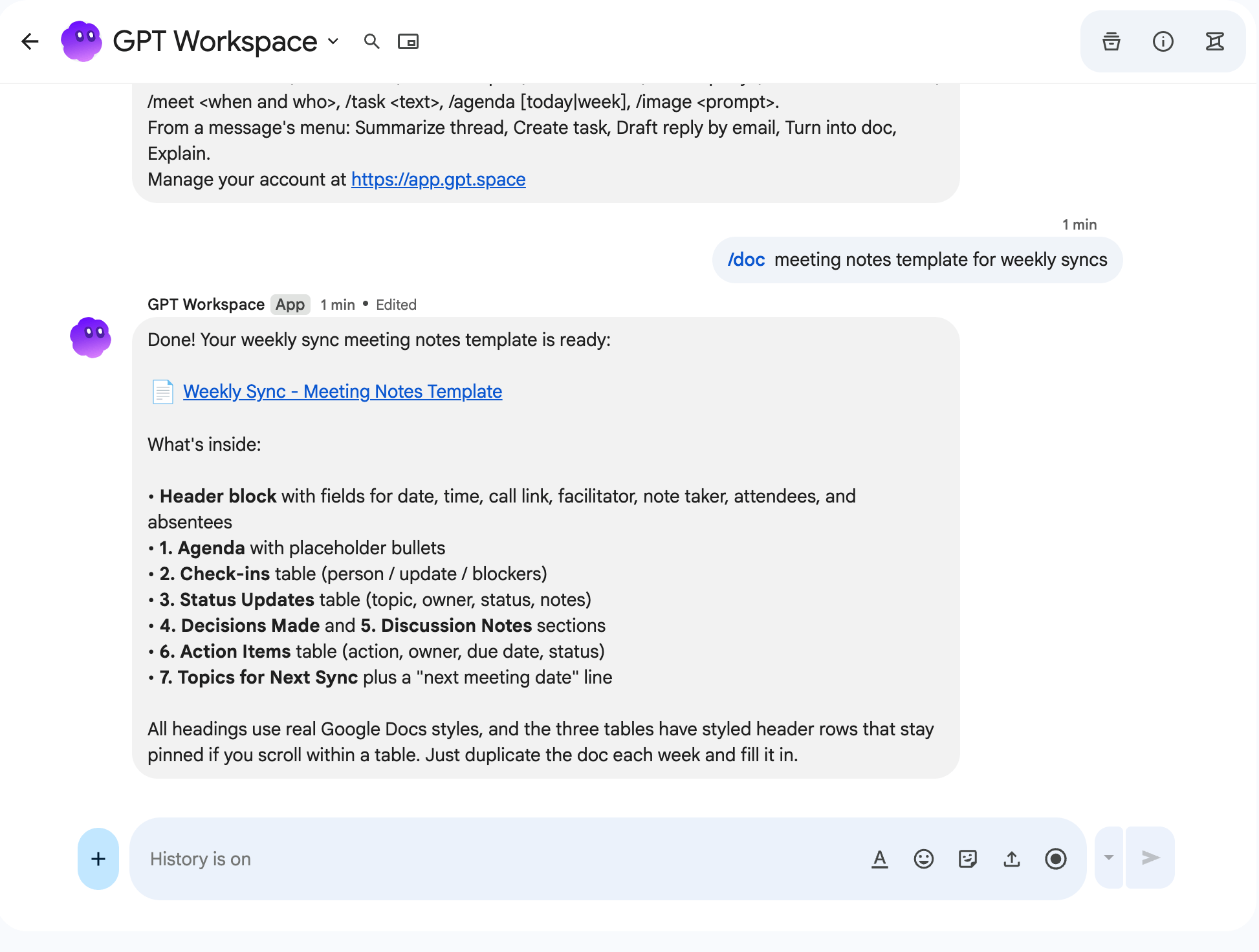
Section titled “Commands”Type / to see the commands, for example /doc meeting notes template for weekly syncs creates a Google Doc and replies with the link.
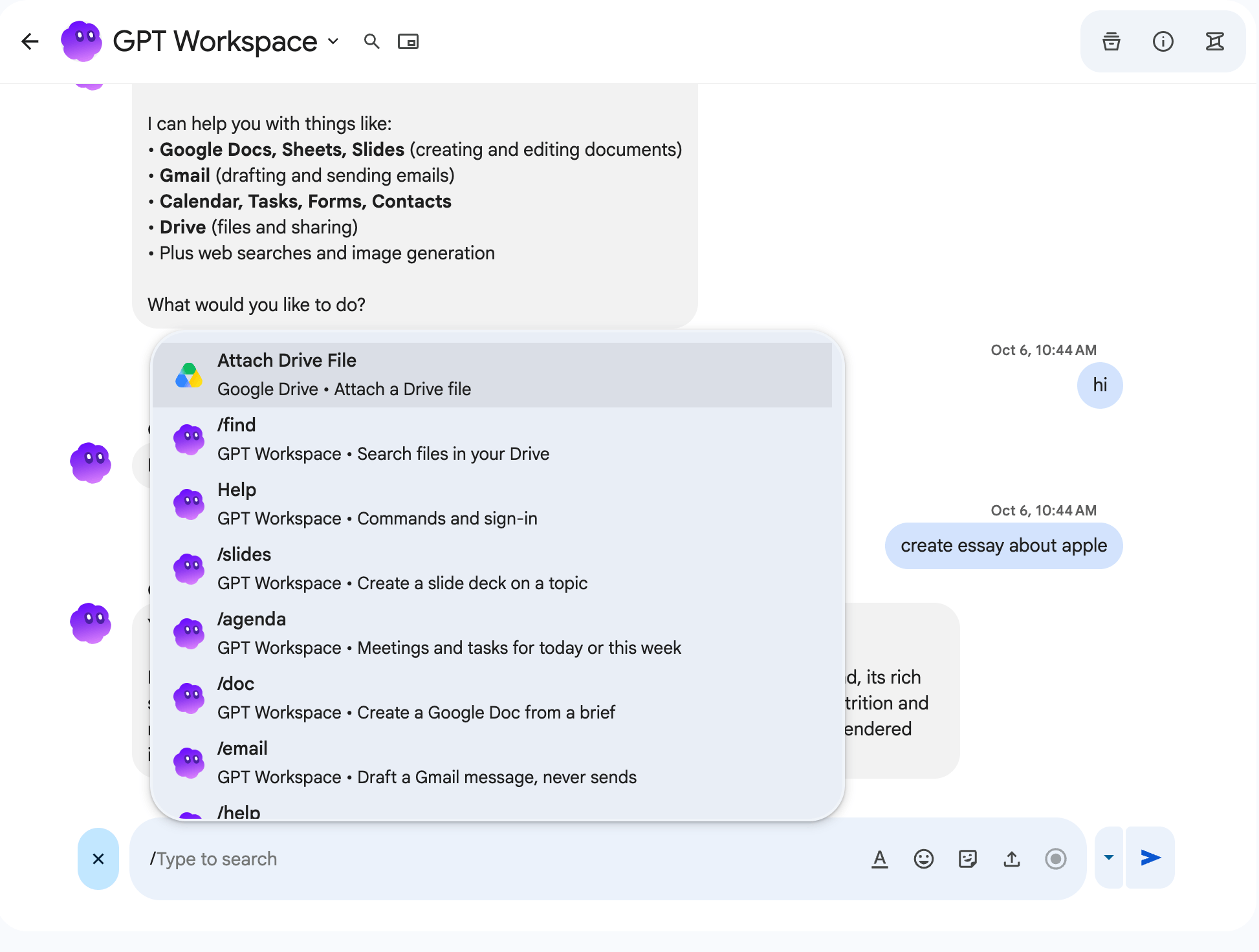
All commands, quick commands and message actions are described on Google Chat commands.
Permissions
Section titled “Permissions”When a request needs a Google permission you have not granted yet, for example creating a calendar event, the answer contains a link to grant it. Follow it, accept, and send the request again.