
Formula controls and retry errors
In Google Sheets, Extensions ➤ GPT Workspace has entries specific to the GPT formulas.
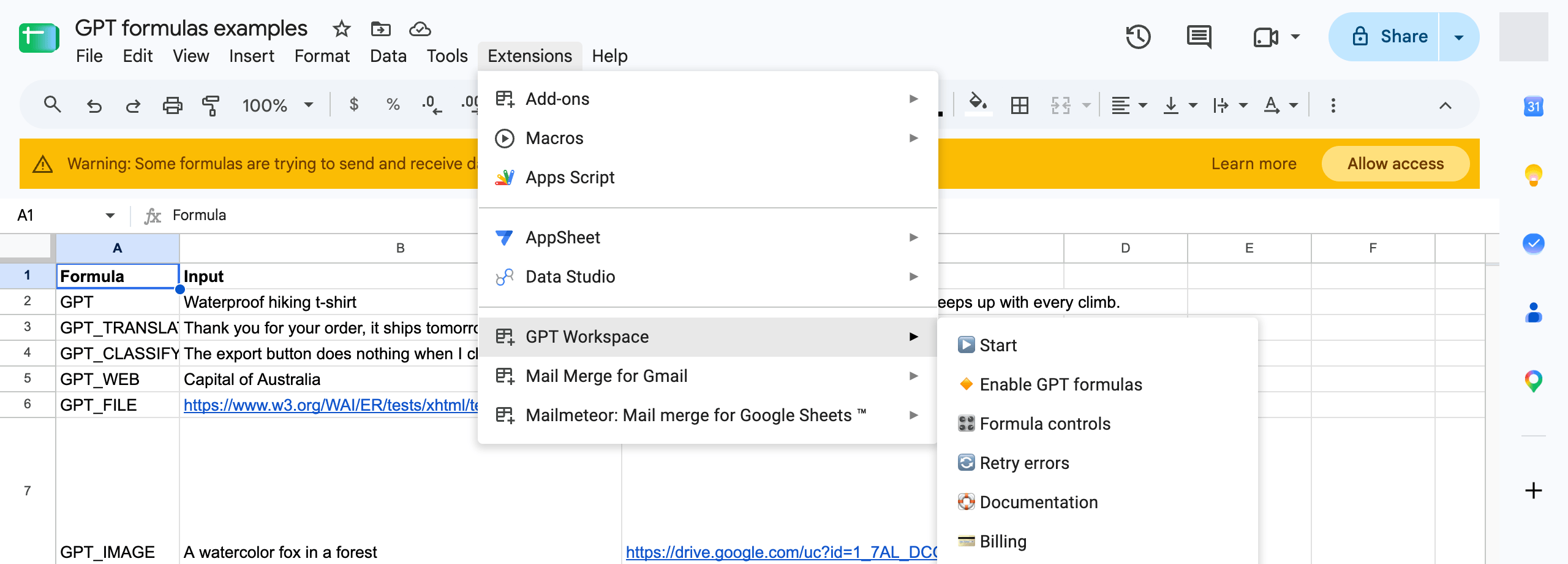
| Entry | What it does |
|---|---|
| ▶️ Start | Opens the chat sidebar. |
| 🔸 Enable GPT formulas | Enables GPT, GPT_LIST, GPT_TABLE, GPT_TRANSLATE, GPT_WEB, GPT_IMAGE, GPT_COMPLETE, GPT_CLASSIFY and GPT_FILE in this spreadsheet. Needed once per spreadsheet. |
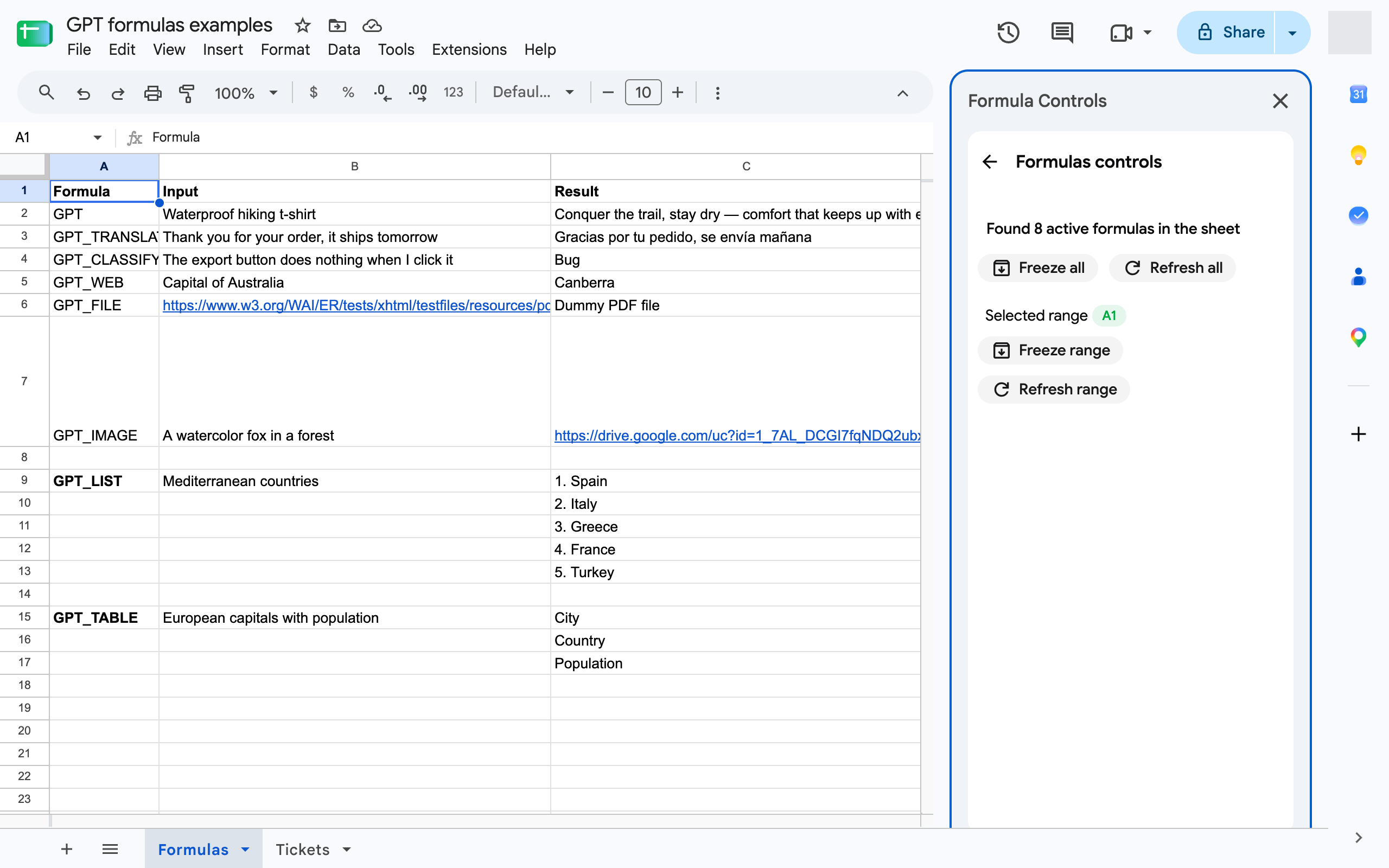
| 🎛️ Formula controls | Opens the Formula controls sidebar: count of active formulas, Refresh all, Freeze all, and Refresh range / Freeze range for the selection. See Refresh or freeze GPT cells. |
| ⚡ Bulk run… | Opens the Bulk run sidebar: one instruction over a range of rows, with a cost preview, background processing and pause / resume. See Bulk run. |
| 🔄 Retry errors | Re-runs every =GPT… formula of the active sheet whose cell shows an error (a value starting with #), for example after a timeout or a rate limit. |
| 🛟 Documentation | Opens this help center. |
| 💳 Billing or ⭐ Upgrade now | Opens your subscription or the pricing page. |
When to use Retry errors
Section titled “When to use Retry errors”- Cells show
Exceeded maximum execution time, a429rate limit orService invoked too many times: wait a minute (or until the next day for the daily quota), then click Retry errors. Only the failed cells are re-run; cached results are kept. - Cells show
#NAME?: the formulas are not enabled, click Enable GPT formulas instead. - Cells show an out-of-credits message: top up or upgrade first, then Retry errors. See Common errors.
Before authorization
Section titled “Before authorization”Until you authorize the add-on, the menu only shows ▶️ Start. Click it, accept the permissions, then reload the spreadsheet to see the other entries. See Authorization is required to perform that action if the authorization fails.