
GPT_CLASSIFY formula
Sort text into your own categories with =GPT_CLASSIFY
Section titled “Sort text into your own categories with =GPT_CLASSIFY”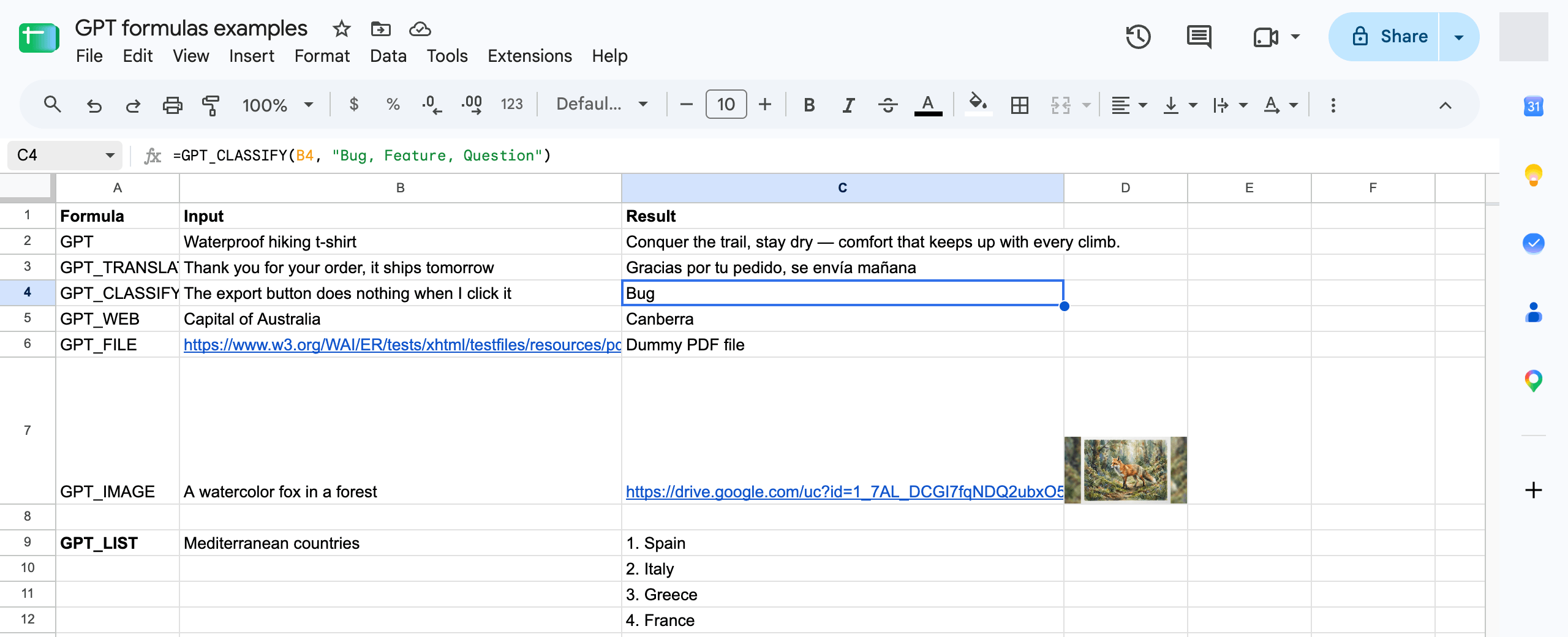
=GPT_CLASSIFY(value, categories, instructions, output, bypassCache)
| Parameter | Description | Default |
|---|---|---|
value | The cell to classify (ex: A2), or a range of up to 100 cells (ex: A2:A50). A range returns one result per cell, in the same shape. required | "" |
categories | Either a comma-separated list (ex: "Bug, Feature, Question") or a range of cells. A one-column range holds the labels; a two-column range holds a label and its description (ex: F2:G5). Descriptions make the classification noticeably more accurate. required | "" |
instructions | Context for the classifier (ex: "Support tickets of a SaaS product"). | "" |
output | label (the chosen category), confidence (a 0 to 1 score of the chosen category), both (label and score in two columns) or all (one score per category, in the order of your categories). | label |
bypassCache | Bypass the cache and classify again. | false |
Examples
Section titled “Examples”| Formula | Result |
|---|---|
=GPT_CLASSIFY(A2, "Bug, Feature, Question") |
Bug |
=GPT_CLASSIFY(A2, "Bug, Feature, Question", "Support tickets", "both") |
Bug | 0.94 |
=GPT_CLASSIFY(A2, F2:G5, , "all") |
one score per category, in F2:F5 order |
=GPT_CLASSIFY(A2:A50, $F$2:$G$5) |
one label per row, in a single formula |
Tip: put your categories in a range with a description next to each label, for example Bug | something is broken, Feature | asks for a new capability, Question | asks how to do something. Then reference the range with $F$2:$G$5 so you can drag the formula down.
Confidence and review
Section titled “Confidence and review”Every classification always returns the best matching category. Use "both" to get the confidence next to the label and flag low-confidence rows for a human review with a filter or a conditional format, or "all" to see the full score distribution for a heatmap.
Blank cells return a blank result. Identical texts in a range are classified once, and re-running a range only classifies the cells whose text changed.
Model & pricing
Section titled “Model & pricing”=GPT_CLASSIFY runs on TypeSafe Jev, a decision model that answers a single-choice question with a probability per category. It is faster and about 10x cheaper than a text formula, and it is charged at the model’s actual cost. It is available on every plan.
If the decision model is unavailable, the formula falls back to the Standard text model so your sheet never shows an error for that reason; the confidence score is then left blank.