
Snippets
Snippets are reusable prompts. Press / in the message box (or click Insert snippet) and pick one; the snippet is inserted as a chip, and you can add your own text after it.
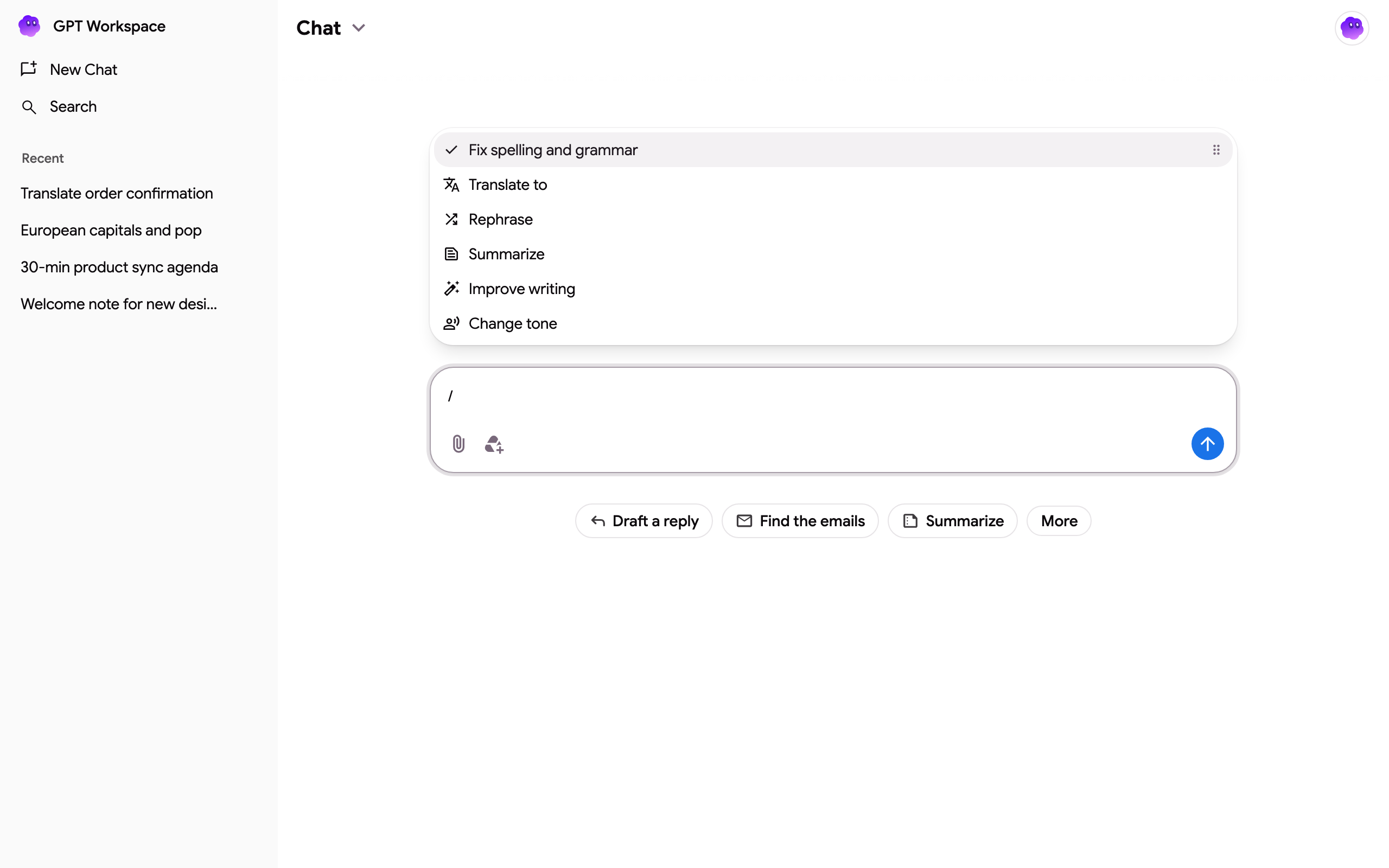
Built-in snippets
Section titled “Built-in snippets”| Snippet | What it asks the agent |
|---|---|
| Rephrase | Rewrite the text with the same meaning. |
| Fix spelling and grammar | Correct the text without changing its style. |
| Summarize | A short summary of the text. |
| Improve text | Clearer, better-structured text. |
| Improve writing | Better style and flow. |
| Translate to | Translate into the language you pick. |
| Change tone | Rewrite with the tone you pick. |
Variables
Section titled “Variables”Some snippets have a variable shown as a second chip:
- Translate to asks for a language. Type to search the list.
- Change tone offers Professional, Casual, Straightforward, Friendly, Formal, Optimistic, Pessimistic, Persuasive, Playful, Sincere, Authoritative, Confident, Encouraging, Excited, Funny and Inspiring.
Click the chip to change the value, or the × to remove the snippet.
What text the snippet applies to
Section titled “What text the snippet applies to”- In the Chrome extension side panel or the add-on sidebar, the snippet applies to the text selected in the document, the spreadsheet range or the slide. The selection is shown above the message box; remove it with the ×.
- Otherwise it applies to the text you type after the snippet, or to the previous answer.
Tip: in Google Docs, the AI bar at the bottom of the page has the most common snippets as one-click chips.