
Projects
A project is the chat with your own instructions, its own memory and its own knowledge: files and folders from Google Drive the assistant searches before answering, and cites with a link. Use one per recurring job, for example a support agent that knows your help articles, or a writer that follows your style guide. Projects were called custom assistants before; the API and the links still use that name.
Every plan includes one project. The Standard and Pro plans have unlimited projects and more knowledge files per project (see Limits). On the Free and Starter plans you can also use the shared projects you received, and you are offered to upgrade when you create a second one.
Create a project
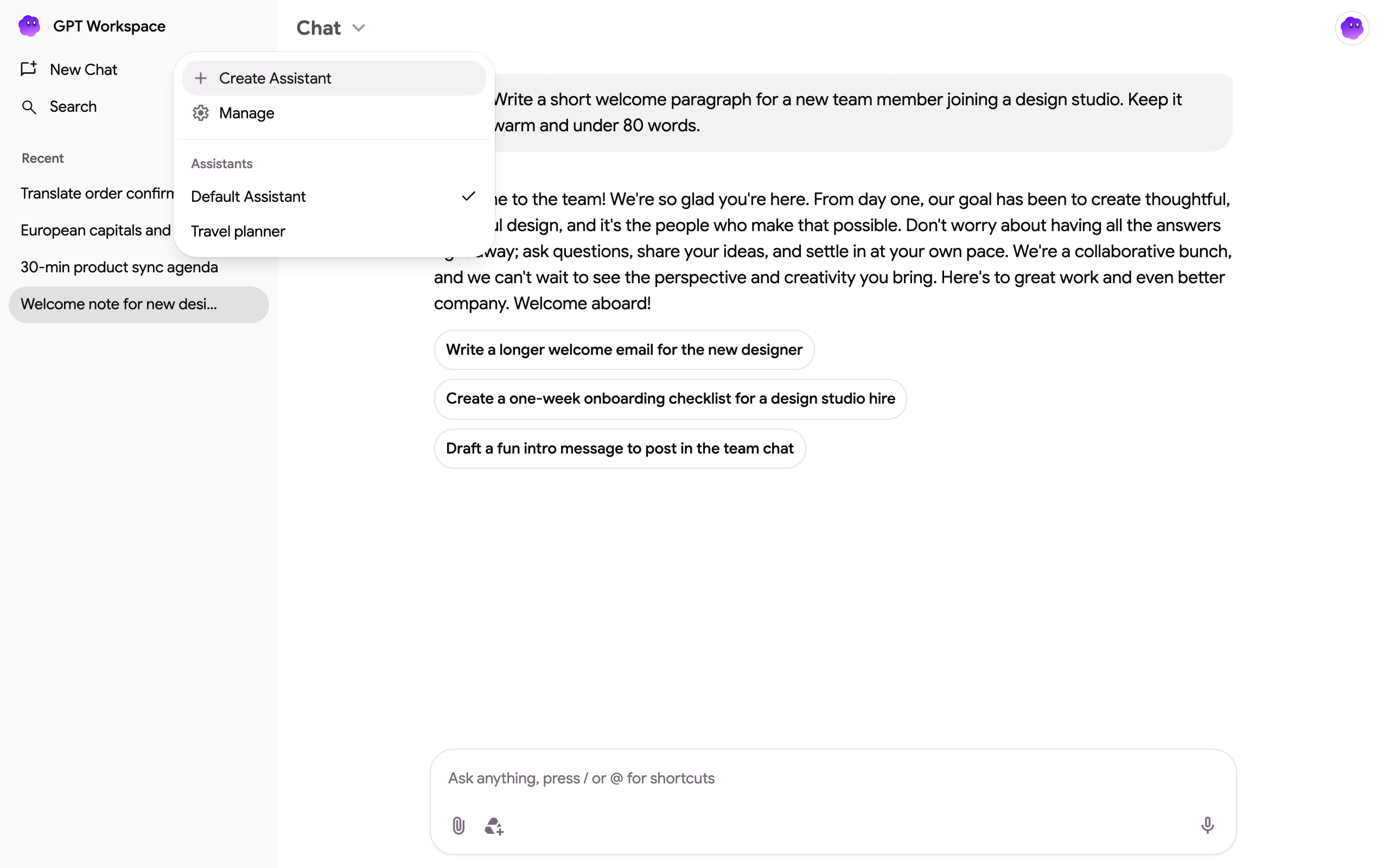
Section titled “Create a project”- Open Settings ➤ Projects or go to gpt.space/app/settings/assistants, then click Create project. You can also pick Create project in the Chat ⌄ menu at the top of the chat.
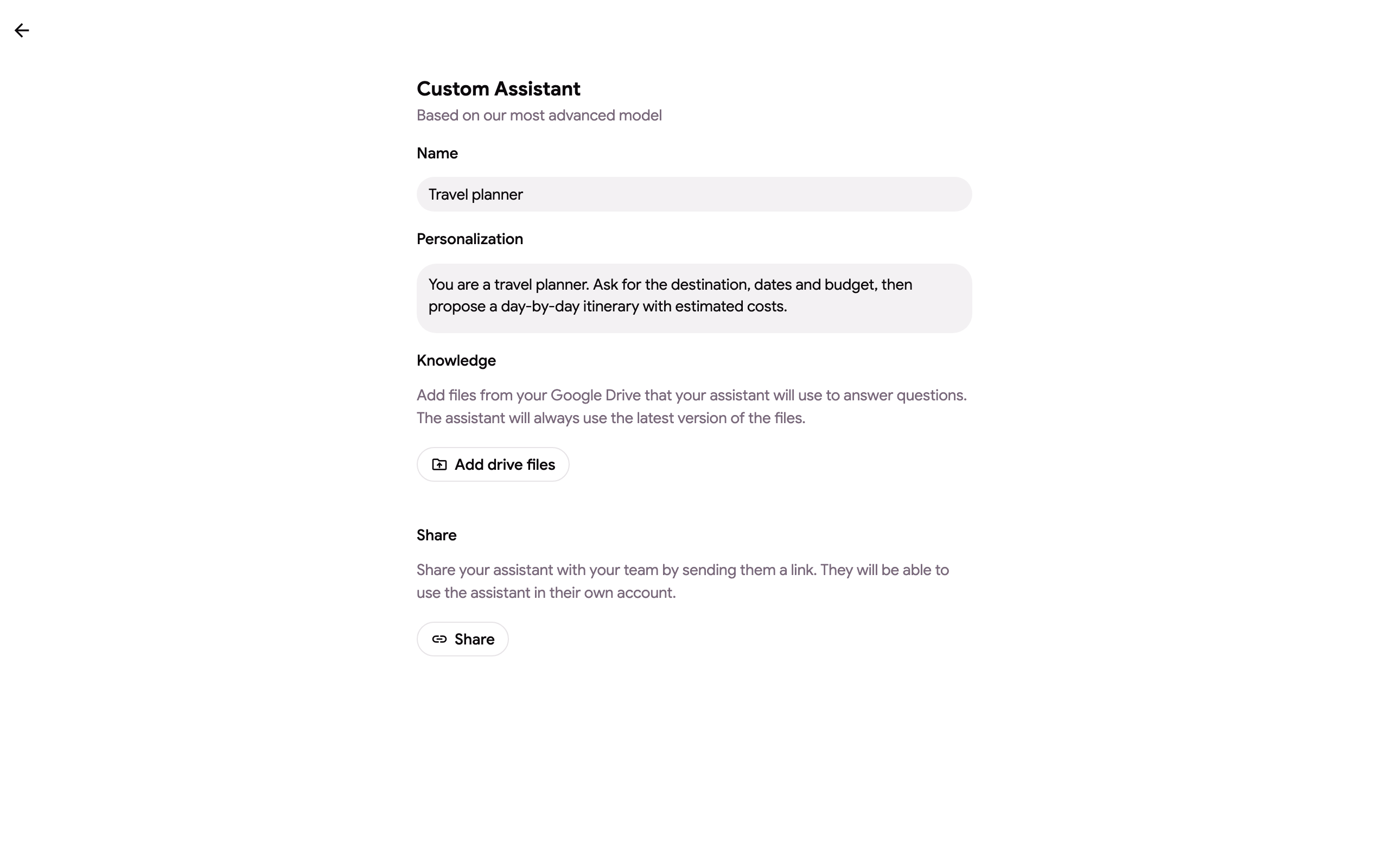
- Give it a Name and write the Instructions the project follows in every chat. Say who it is, what it does, how it answers and in which language.
- Under Knowledge, click Add Drive files and choose Google Docs, Sheets, Slides or PDFs, or click Add Drive folder and pick a folder: every supported file in it, sub-folders included, is added.
- The project saves as you type; the status under the form says Project saved.
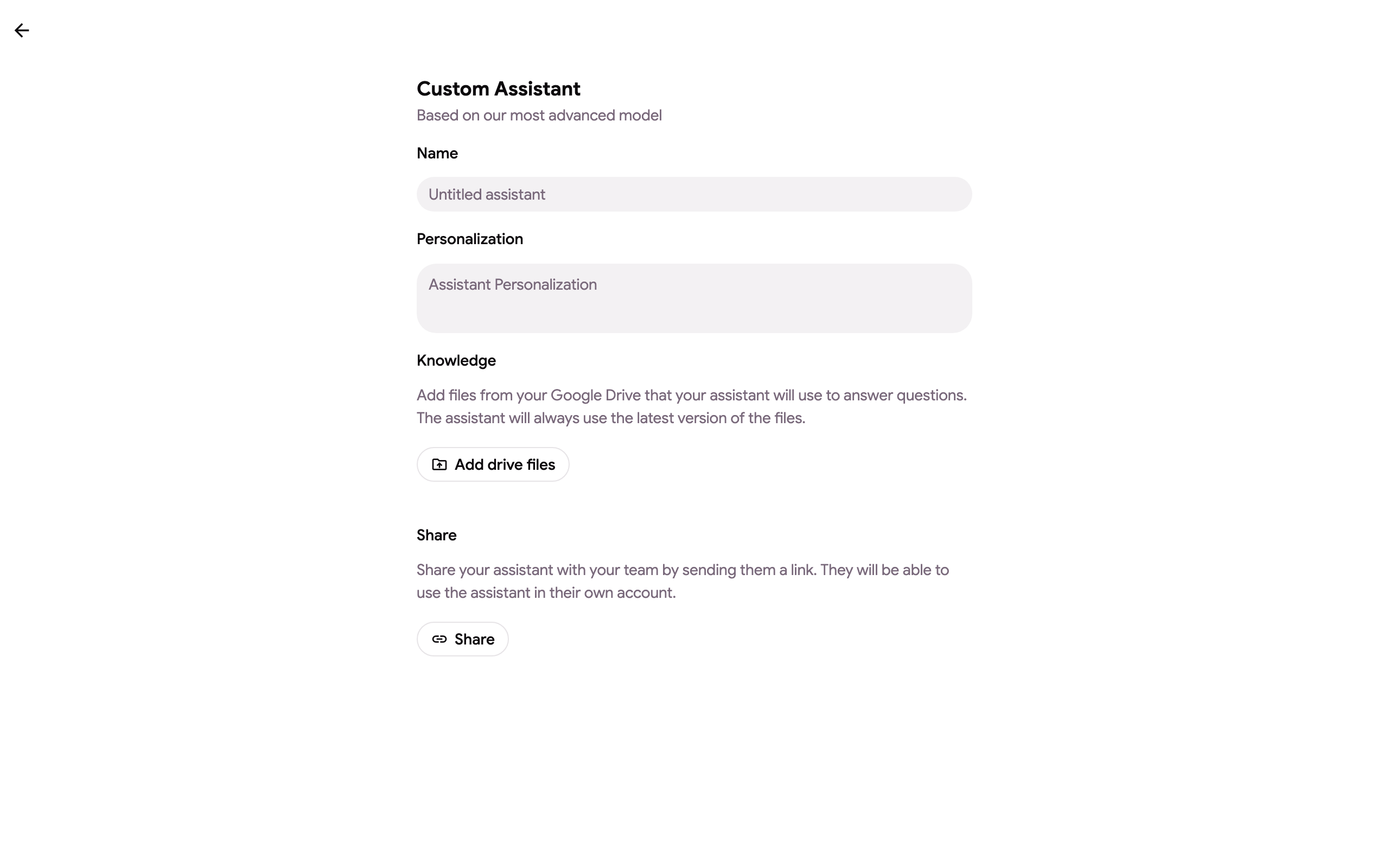
Open a project from the list to edit it; the form saves as you type.
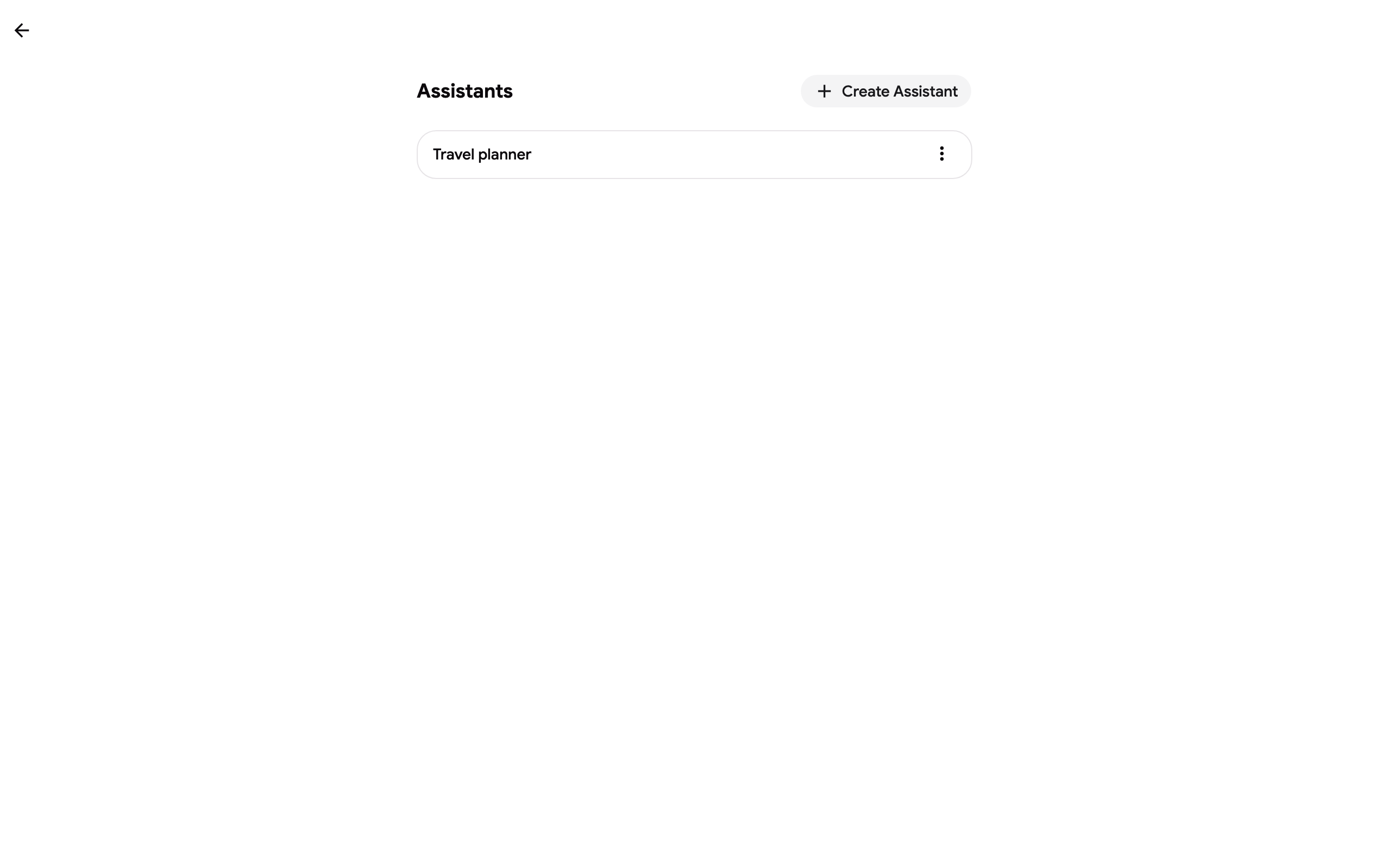
The list shows all your projects.
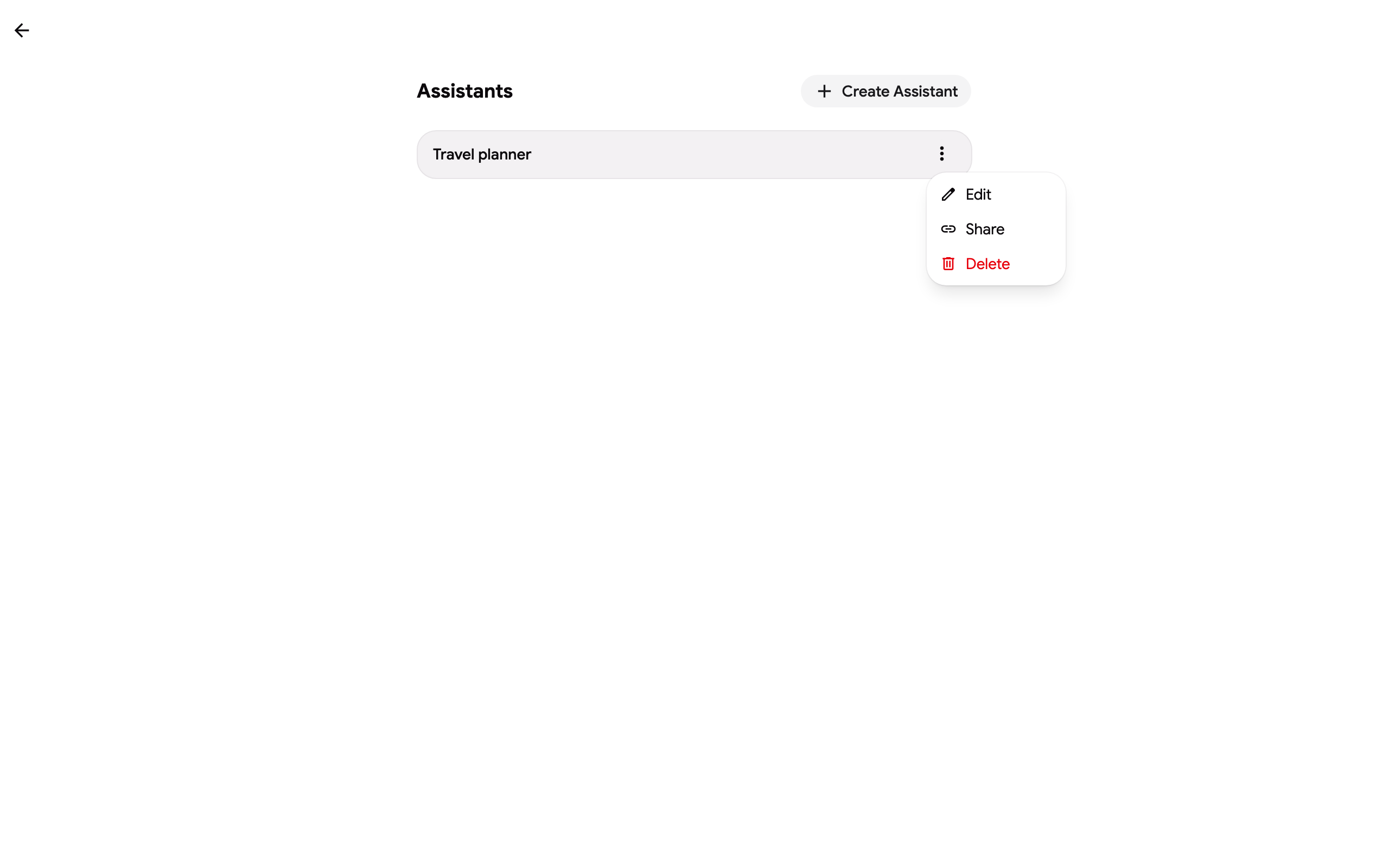
 From the ⋮ menu of a project you can Edit, Share or Delete it.
Knowledge: files and folders
Section titled “Knowledge: files and folders”Knowledge is indexed the first time the project is used in a chat and refreshed when a file changes in Drive. Each file in the list shows its status:
- Indexed: searchable in the chat.
- Pending: added, indexed on the next chat with the project.
- Skipped: not indexed, with the reason: a binary over 30 MB, or a type the index does not support (images, archives, videos). Google Docs, Sheets and Slides are indexed as text whatever their size; PDFs and text files are indexed as they are. Skipped files do not count toward your limit.
- Failed: the file could not be read or uploaded; it is retried on the next chat.
A folder keeps its files in sync when you click Resync folders: files added to the folder in Drive are added to the project, files removed from the folder are removed from the project. Files you picked by hand are never touched by a resync, and a file from a folder is removed by removing the folder.
Citations
Section titled “Citations”When an answer draws on the project knowledge, it ends with a Sources line listing the files it used as links to Google Drive, so you can open the document behind every claim. The chat only cites files whose excerpts it actually used.
Memory
Section titled “Memory”Each project has a Memory: a short list of notes (up to 2,000 characters) it keeps between chats. In a chat with the project, ask it to remember something (“remember that our fiscal year starts in April”) and it saves a note and confirms with Saved to project memory. You can read, edit or clear the notes under Memory in the project settings. The memory is part of the project, so people you shared it with see the same notes; viewers cannot add to it.
Use a project
Section titled “Use a project”Open the Chat ⌄ menu at the top of the chat and pick the project. The whole thread then uses its instructions, memory and knowledge. Manage in the same menu opens the projects page.
Share a project
Section titled “Share a project”- Click Share in the project’s menu, or the Share button at the bottom of its form.
- Choose the Link permission: Can view lets others use the project, Can edit also lets them change its instructions, memory and knowledge.
- Click Copy and send the link.
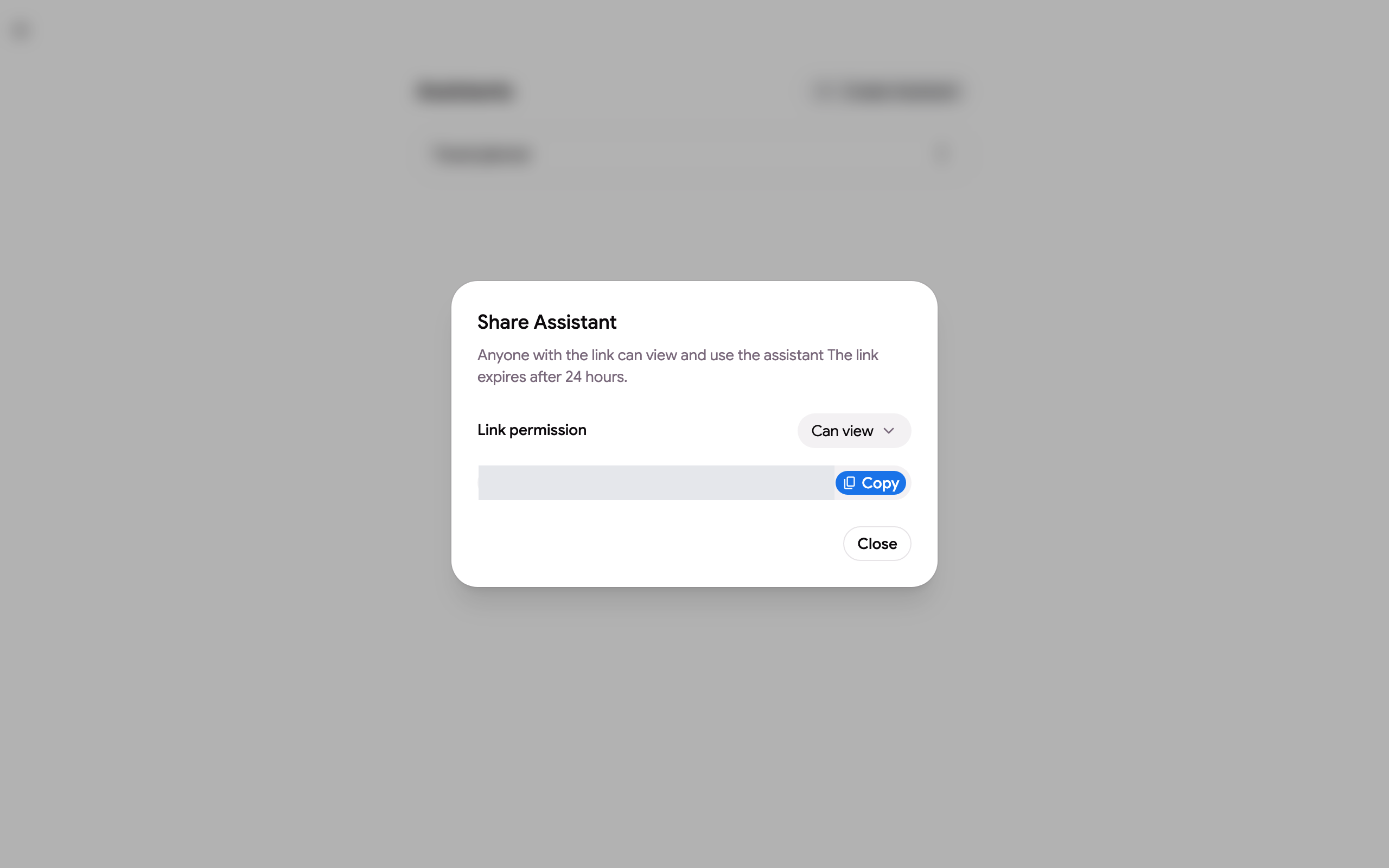
The link expires after 24 hours. Whoever opens it signs in to GPT Workspace and gets the project in their own list; the knowledge files are read with the access of whoever added them, so you do not need to share the Drive files separately. Only the owner can share a project or delete it; an editor sees a view only notice if the owner later restricts the link.
Limits
Section titled “Limits”- Projects: one on the Free and Starter plans, unlimited on Standard and Pro.
- Knowledge files per project: 10 on Free and Starter, 100 on Standard, 300 on Pro. Google Docs, Sheets, Slides, PDF and text files; a folder counts by the files it holds.
- Files over 30 MB and unsupported types are skipped and do not count.
- Name up to 64 characters, instructions up to 8,000 characters, memory up to 2,000 characters.
- Knowledge is indexed on first use and refreshed when the files change; an index unused for 7 days is rebuilt on the next question. A large folder takes a few minutes to index the first time.