
GPT_IMAGE formula
Generate images with =GPT_IMAGE
Section titled “Generate images with =GPT_IMAGE”With GPT_IMAGE, generate thousands of AI images in one click by selecting from several image generation models.
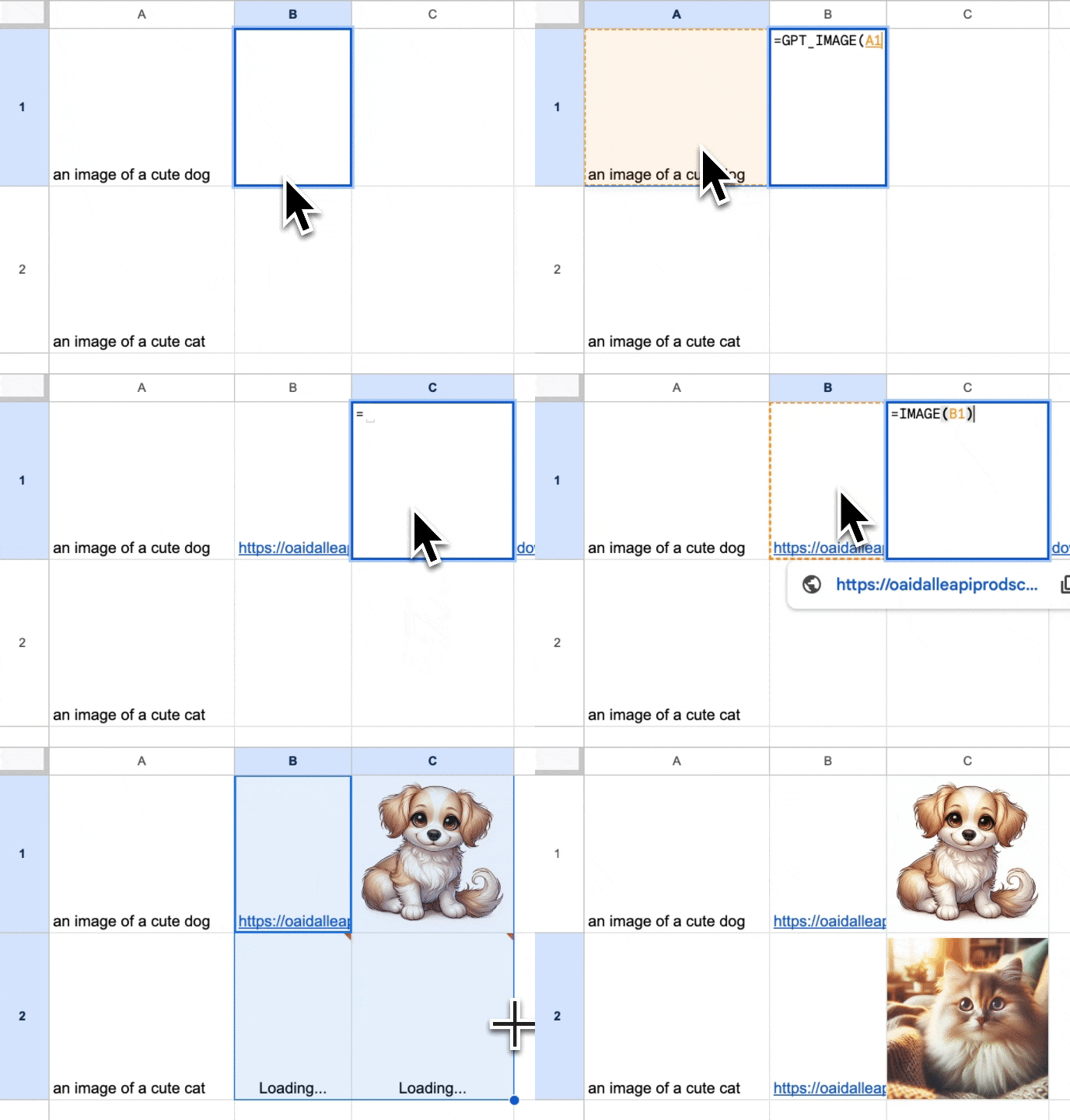
You will need to Allow access to let =IMAGE formula fetch and display the image in your sheet

To get started, select a cell and input then use the following formula
=GPT_IMAGE(prompt, value, temperature, model, cache)
| Parameter | Description | Default |
|---|---|---|
prompt | the prompt describing the image you want to generate. (ex: "a cute dog wearing a baseball hat") required | "" |
seed | Repeated requests with the same seed and parameters should return the same result | null |
model | The image model to use, see table below | gemini |
quality | auto , high , medium , low (Gemini models only support auto) | auto |
size | auto , 1024x1024 , 1536x1024 , 1024x1536 | auto |
bypassCache | Bypass the cache and query the image model again. The results will be differents than before. | false |
There is no style parameter.
Available models
Section titled “Available models”model value |
Model | Relative cost | Plans |
|---|---|---|---|
gemini (default) |
Gemini 3.1 Flash Lite Image (nano banana) | lowest | All plans |
gpt |
GPT Image 1 mini | low | All plans |
openai/gpt-image-2 |
GPT Image 2 | high | Paid plans only |
google/gemini-3-pro-image |
Gemini 3 Pro Image | highest | Paid plans only |
Credits are charged at each model’s actual cost, so the premium models consume considerably more per image than the default.