
Google Chat commands
Install and basics are on Get started: Google Chat app. Everything below works in a direct message with the app and in spaces where it was added.
Mention or message
Section titled “Mention or message”Write your request directly in a direct message, or @GPT Workspace <request> in a space. The app replies in the thread and keeps the conversation history per space or thread.
Slash commands
Section titled “Slash commands”Type / in the message box to see them.
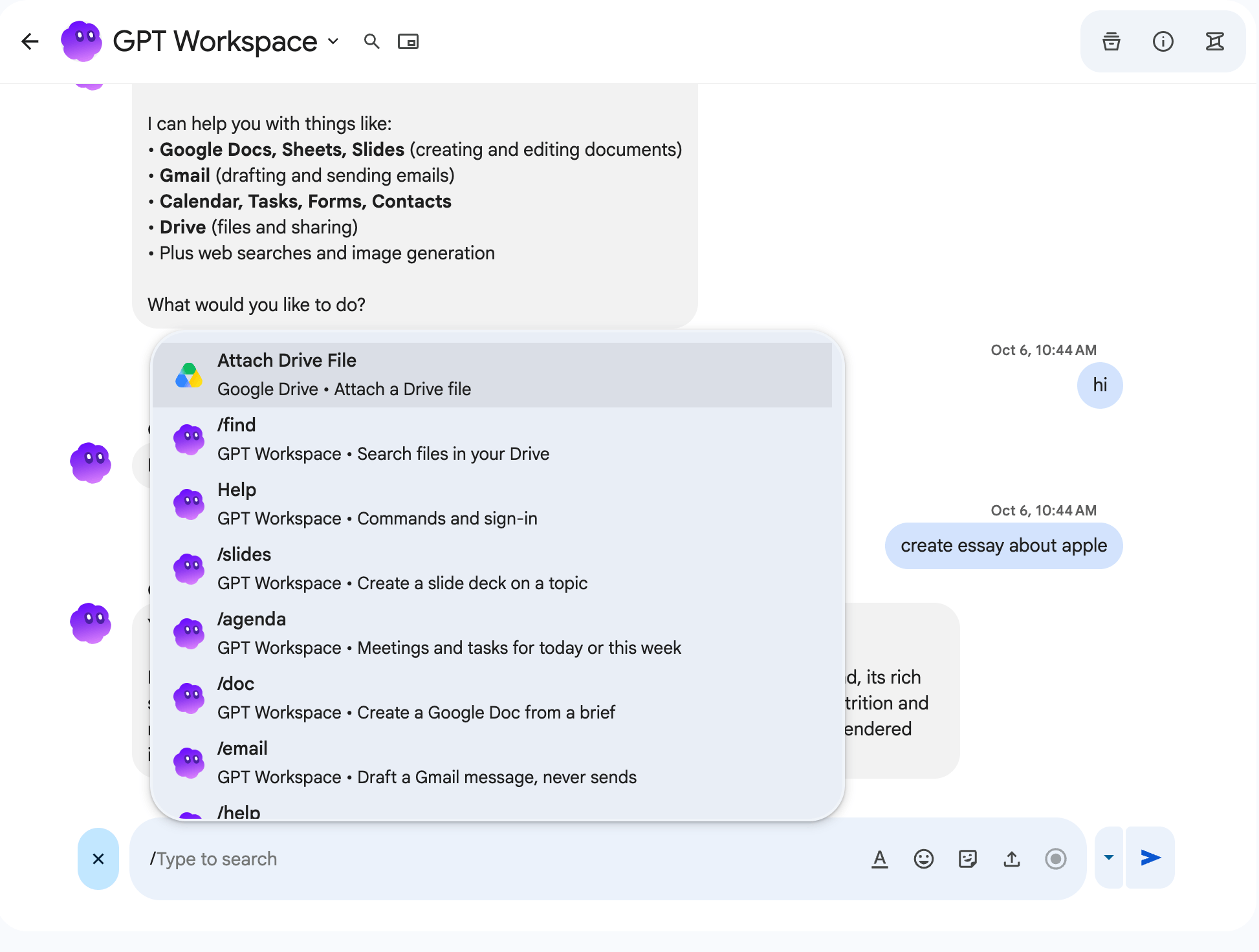
| Command | Example | What it does |
|---|---|---|
/summarize <link or text> |
/summarize https://docs.google.com/document/d/… |
Summarizes a document, a page or a text |
/doc <brief> |
/doc meeting notes template for weekly syncs |
Creates a Google Doc and replies with the link |
/slides <topic> |
/slides Q3 results, 8 slides |
Creates a slide deck and replies with the link |
/sheet <data> |
/sheet top 10 EU countries by population |
Creates a spreadsheet with the data |
/find <query> |
/find Q3 budget |
Finds files in your Google Drive and replies with links |
/email <to and what> |
/email to Ann, propose a call on Friday |
Drafts a Gmail message (never sends it) and replies with the draft link |
/meet <when and who> |
/meet tomorrow 15:00 with ann@example.com, 30 min |
Creates a Google Calendar event and replies with the link |
/task <text> |
/task send the invoice by Friday |
Adds a Google Task |
/agenda [today or week] |
/agenda week |
Your calendar events and pending tasks, today by default |
/image <prompt> |
/image a watercolor fox |
Generates an image |
/help |
Shows the command list |
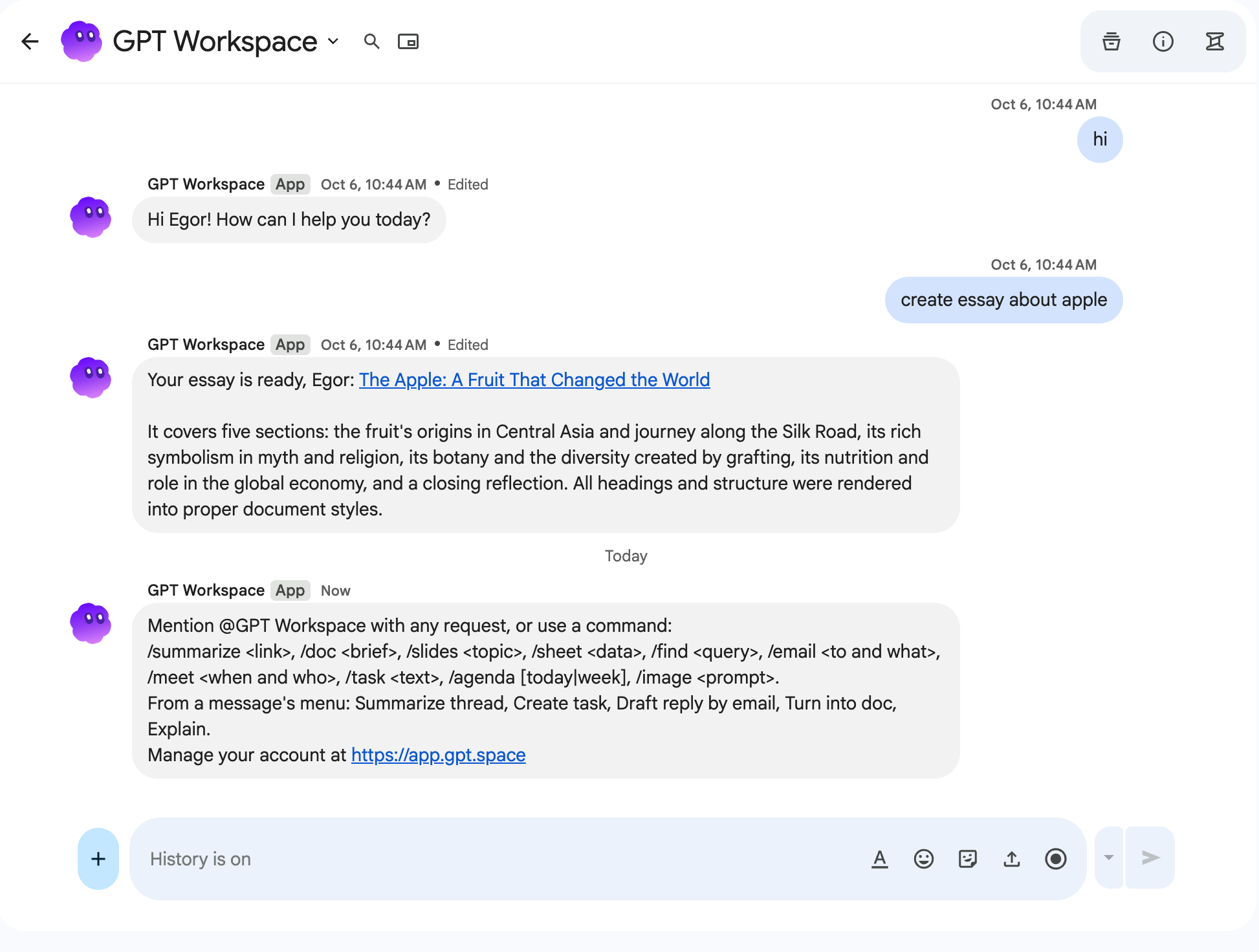
A command without its text gets “Add what you want after the command, for example: /doc meeting notes template for weekly syncs”.
Quick commands
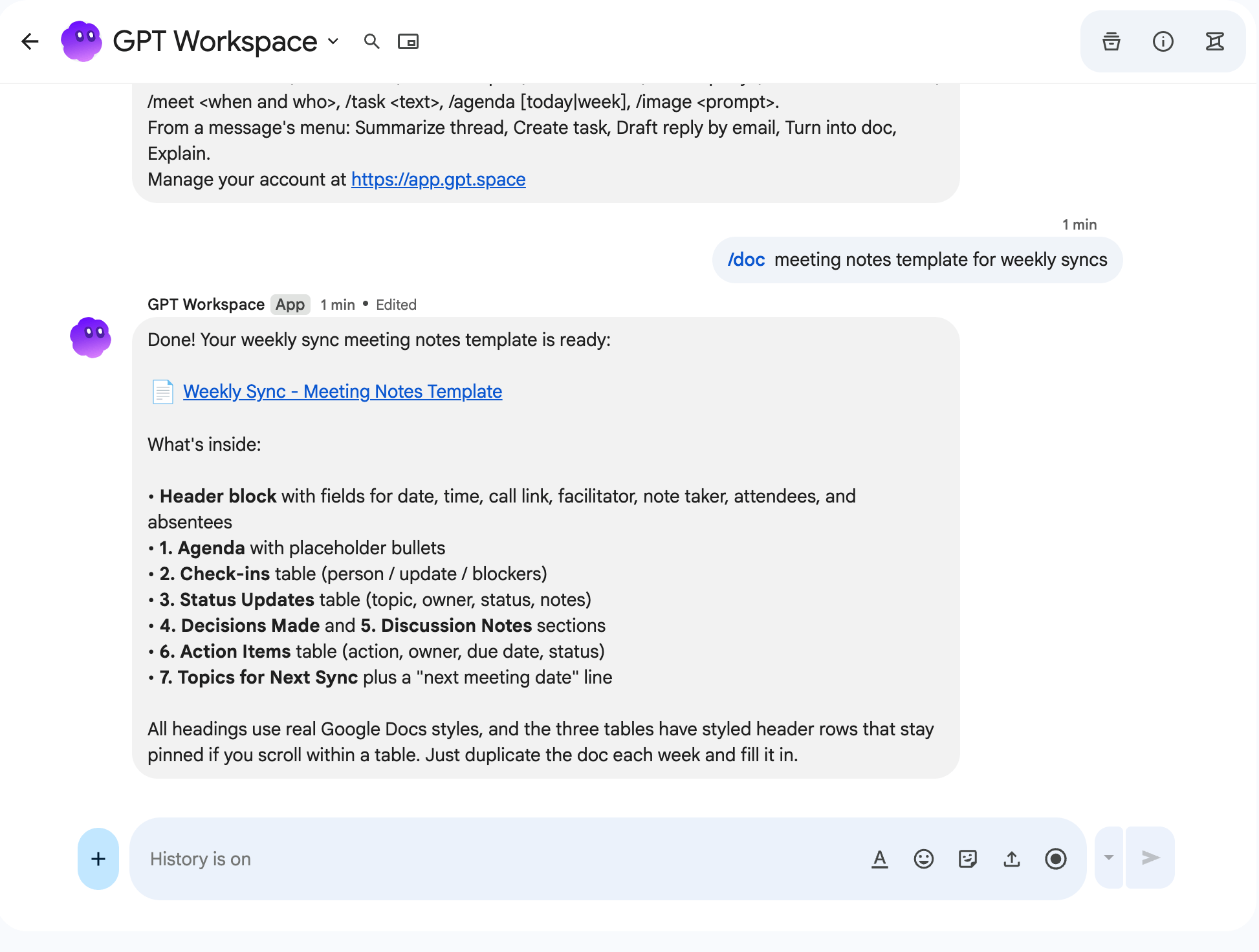
Section titled “Quick commands”The + (quick commands) menu of the message box offers doc, slides, agenda and help without typing a slash.
Message actions
Section titled “Message actions”Hover any message, open its ⋮ menu and pick a GPT Workspace action. The message text is the input:
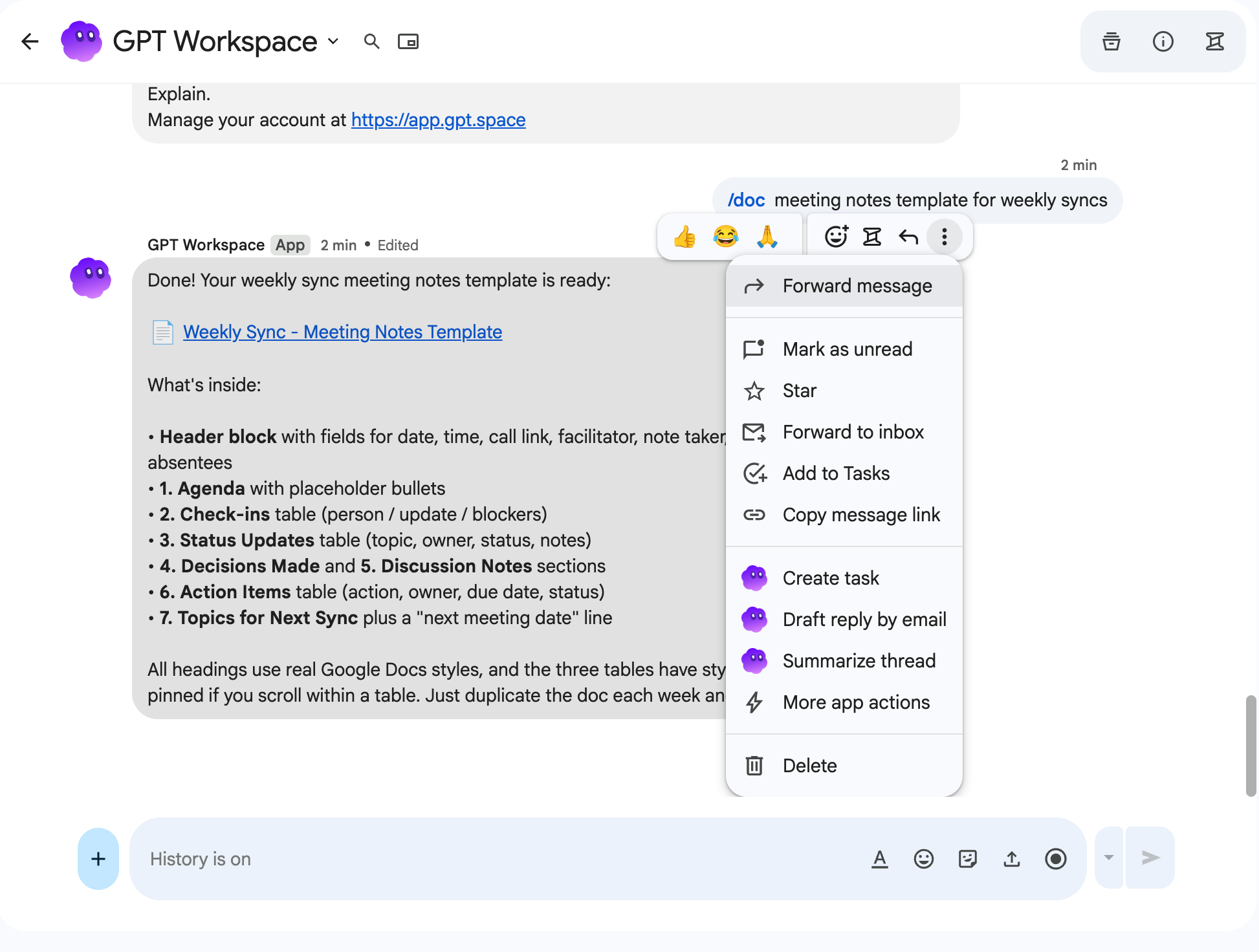
| Action | What it does |
|---|---|
| Summarize thread | Summarizes the message |
| Create task | Adds a Google Task that follows up on the message |
| Draft reply by email | Drafts a Gmail reply (not sent) and replies with the draft link |
| Turn into doc | Creates a Google Doc with the message, cleaned up and formatted |
| Explain | Explains or answers the message |
Messages you may see
Section titled “Messages you may see”- “I could not identify your Google account. Please sign in to GPT Workspace at gpt.space/app first.”: sign in at gpt.space/app with the Google account you use in Chat.
- “Your plan’s credits are used up. Upgrade or top up at gpt.space/app and try again.”: see Top up.
- A link to grant a Google permission: the request needs Calendar, Tasks, Drive or Gmail access you have not granted yet. Follow the link, accept, and send the request again.
- “Something went wrong while generating the answer. Please try again.”
Limits
Section titled “Limits”- Requests are truncated to 8,000 characters.
- Long answers are split into several messages of up to 4,000 characters.
- The app only answers members of the space.