
Dark mode for Docs, Sheets, Slides, Drive and Gmail
The Chrome extension can darken Google Docs, Sheets, Slides, Drive and Gmail. Google offers no built-in dark theme for the editors on the web, and Gmail’s own dark theme keeps email bodies white. Dark mode is free, needs no sign-in and uses no credits: it only changes how the page is drawn on your screen.
Two modes
Section titled “Two modes”Each app remembers its own setting.
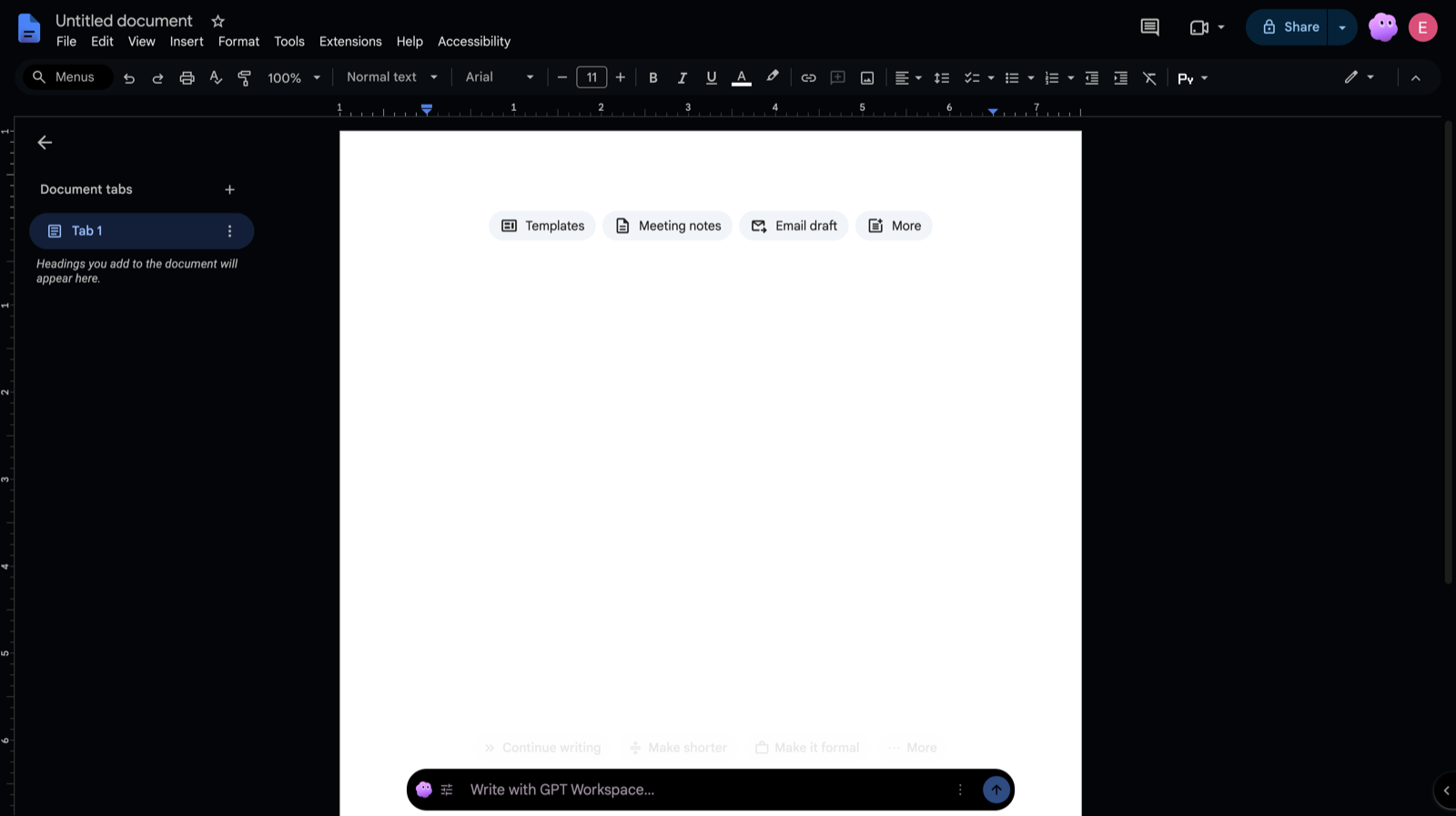
- Dark toolbars: menus, toolbars, side panels and the grey work area turn dark. The document page, the spreadsheet grid, the slide and, in Gmail, the emails keep their original colours.
- Full dark: the page is darkened too. A white document becomes near-black with light text, the Sheets grid and the slide canvas follow, and in Gmail the email bodies and the compose editor are darkened as well.
Google Drive has no page, so it offers Off and Full dark only. When you simply toggle dark mode on, Docs, Sheets, Drive and Gmail start in Full dark, Slides in Dark toolbars, so a presentation keeps its design.
Where to turn it on
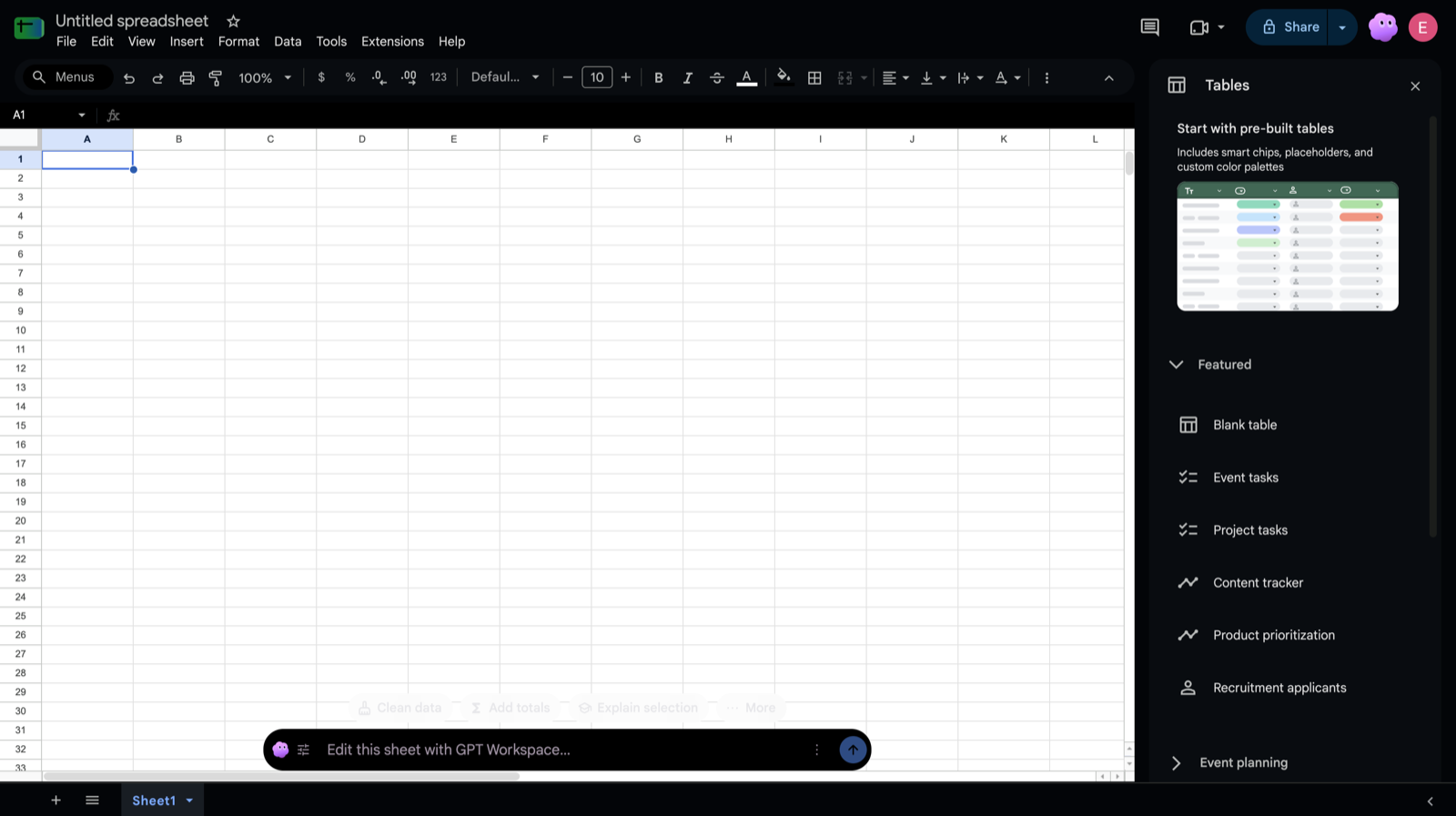
Section titled “Where to turn it on”- Google Docs, Sheets, Slides and Drive: click the moon button in the Google title bar, next to the GPT Workspace mark at the top right, and pick Off, Dark toolbars or Full dark.
- Google Docs and Sheets also have it in the ⋮ menu of the GPT Workspace bar at the bottom of the document, under Dark mode.
- Gmail: click the moon button in the toolbar above the message list, next to Clean up, and pick a mode.
- Keyboard shortcut, in every app: Alt+Shift+D (Option+Shift+D on a Mac) switches between off and the mode you last used, and a small “Dark mode” toast confirms it. Change the key at
chrome://extensions/shortcuts. - Settings: open the side panel, then Settings. There is one selector per app: Dark mode in Google Docs, Sheets, Slides, Drive and Gmail.
The choice applies at once to every open tab of that app and is kept across restarts.
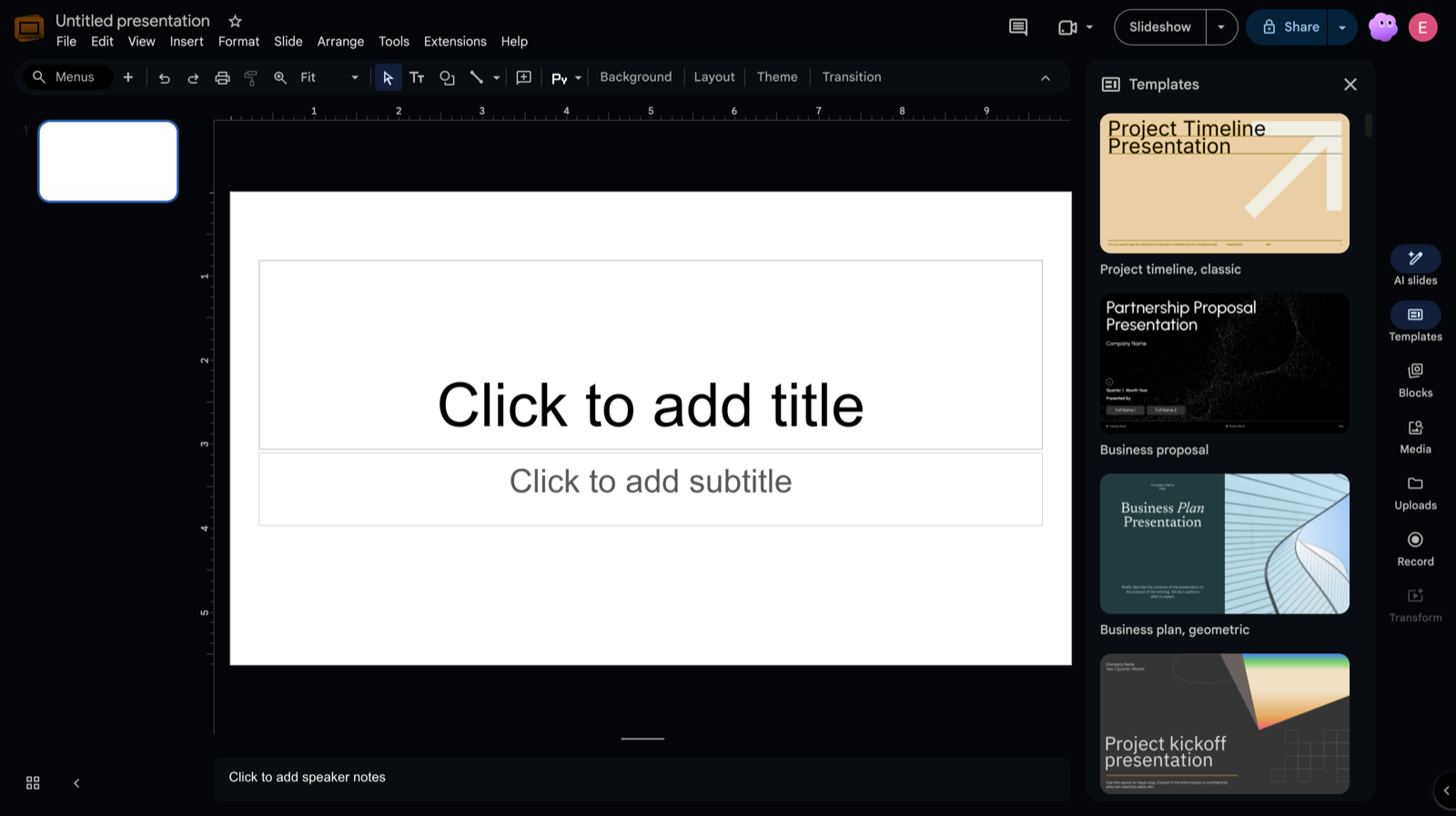
With Gmail’s own light theme, Full dark darkens the whole of Gmail, emails included. With Gmail’s own dark theme already on, the extension leaves the interface alone and only darkens the email bodies that Gmail still shows white.
Emails that are dark by design, such as dark newsletters, are recognised and kept as they are. Above every email the extension darkened, Show original colours shows it exactly as the sender designed it, and Show dark switches back. The choice lasts while the thread is open.
What never changes
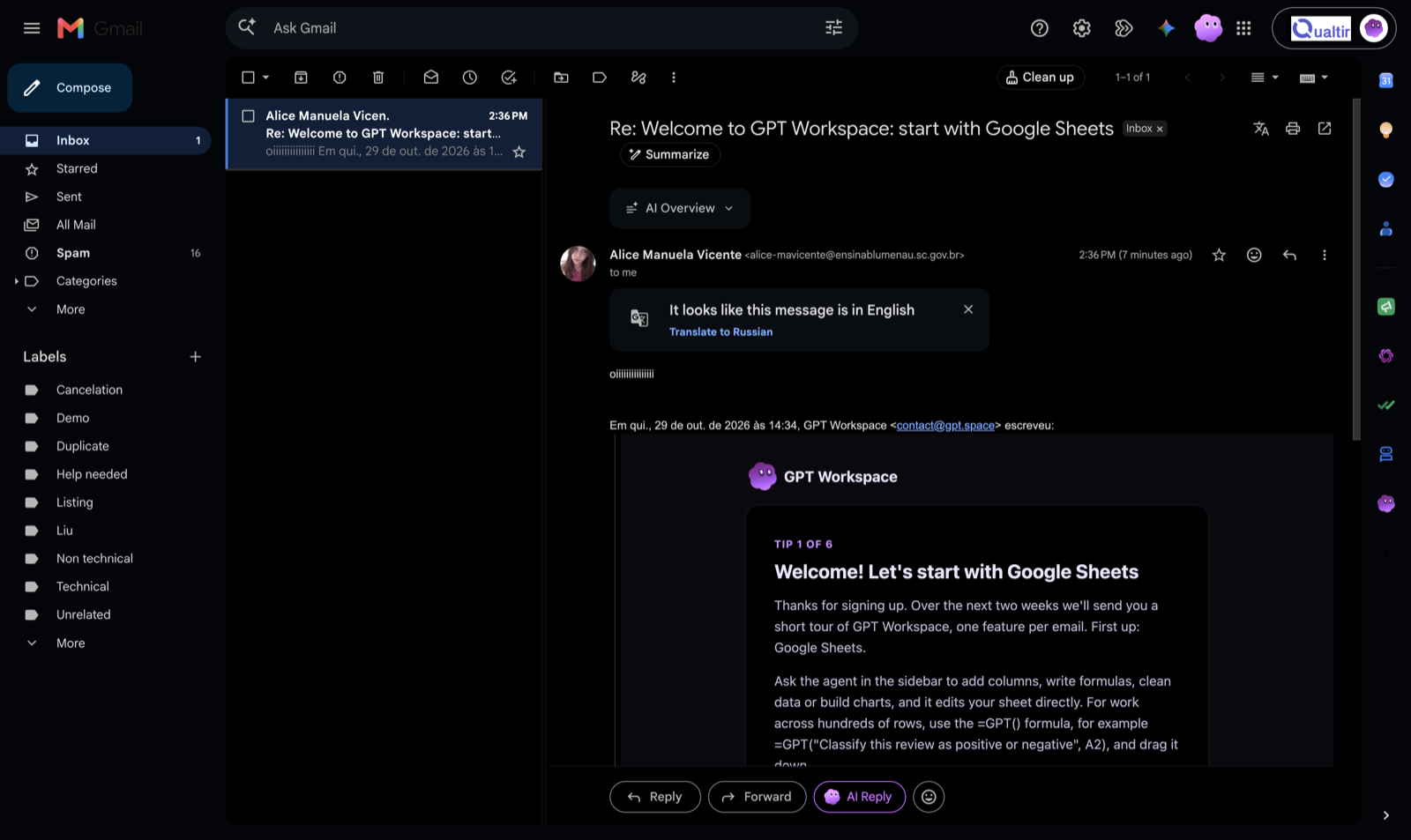
Section titled “What never changes”- The file itself, and what collaborators see. Dark mode is a stylesheet in your browser; nothing is written to the document and nothing is sent anywhere.
- Printing and Save as PDF: the page prints exactly as without the extension. PDF and Word exports and the Download menu are untouched.
- The email you send, forward or print. The compose editor is only darkened on your screen, and Gmail’s printable view is never darkened.
- Images, photos, videos, avatars, logos and Sheets charts: they are shown in their real colours, not inverted.
- Presentation mode in Slides, which is never darkened.
Limits
Section titled “Limits”- Desktop Chrome extension only. The Google Workspace add-on, the mobile apps and other browsers do not have it.
- In Full dark, cell background colours in Sheets and slide colours in Slides are inverted too. Choose Dark toolbars when those colours matter.
- Highly designed emails may contain a mix of light and dark blocks. Use Show original colours on those.