
Docs AI bar
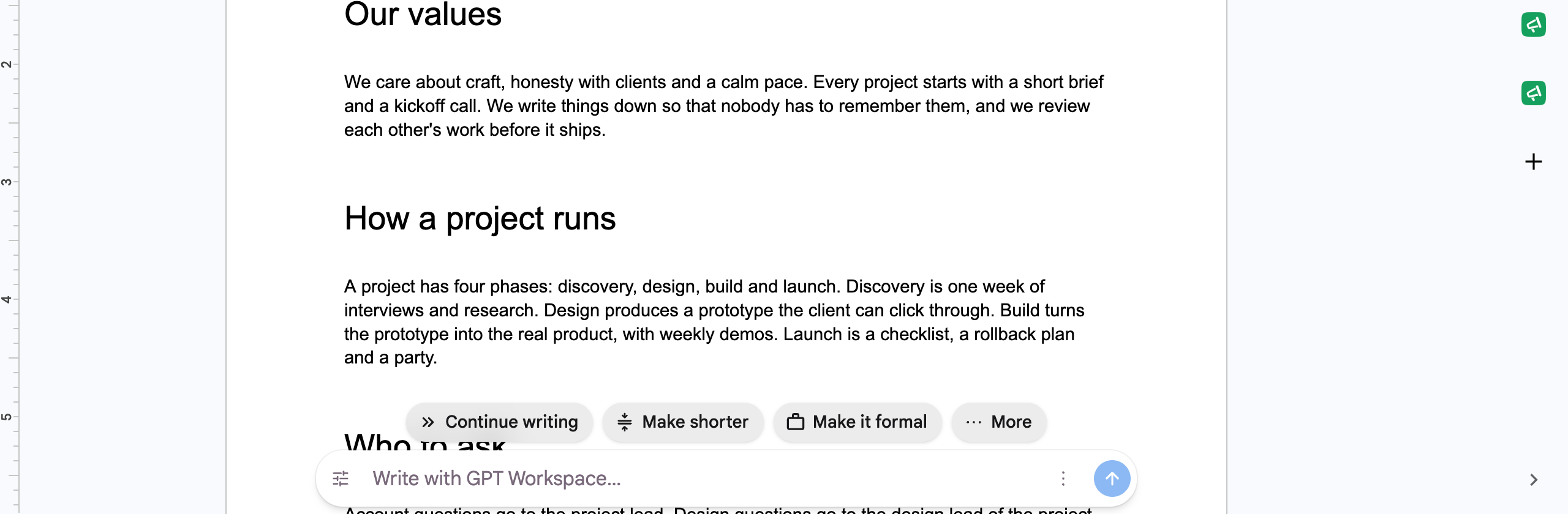
With the Chrome extension, every Google Doc gets an AI bar at the bottom of the page. It runs the same Docs agent as the chat, but stays out of the way: type a request, press Enter, and the document is edited in place.
Use it
Section titled “Use it”- Type a prompt in the box (“Write with GPT Workspace…”, “Create an outline for…”, “Brainstorm a list of ideas for…”) and press Enter or click Send. While the agent works the bar shows “Thinking…”, “Reading the document…”, “Applying changes…”. Click Cancel to stop.
- Select text first to work on that passage: the selection is sent along with your request.
- Chips: Continue writing, Make shorter, Make it formal, and under More: Translate to English, Find source, Make it casual, Explain, Add a conclusion, Give an analogy, Give an example.
- Tools opens the list of prompts and Translate to… with Spanish, French, German, Portuguese, Chinese, Japanese, Korean, Italian and Russian.
When the agent answers with text instead of an edit, the bar shows the reply. Everything it writes is a normal edit, so Undo reverts it.
Collapse, switch or turn off
Section titled “Collapse, switch or turn off”The ⋮ menu has Collapse bottom bar (a small pill stays at the bottom, click it to expand), Switch to side panel (collapses the bar and opens the chat) and Turn off bottom bar. Turn it back on with Show AI bar in Google Docs in Settings.
The bar hides itself while the document is read-only and while Google’s own Gemini bar is on screen.
Messages you may see
Section titled “Messages you may see”- Sign in to GPT Workspace to use the bottom bar: open the side panel and sign in.
- This document is open as X, but GPT Workspace is signed in as Y: the Google account of the tab and the GPT Workspace account differ. Open the document with the same account, or share it with the GPT Workspace account.
- Allow GPT Workspace to edit your Google Docs in the tab that just opened: accept the Docs permission in the tab, then repeat the request. See Google account permissions.
- You’re out of credits: upgrade or top up, see What is a credit?.