
GPT for Google Sheets
Chat with your spreadsheet
Section titled “Chat with your spreadsheet”Open GPT Workspace next to the sheet: Extensions ➤ GPT Workspace ➤ ▶️ Start with the add-on, or the side panel of the Chrome extension. Select a range and ask: “Analyze the data in the selected range”, “Make the selected range uppercase”, “Add a chart”, “Insert a table with the current stock prices of the top 5 S&P 500 companies”.
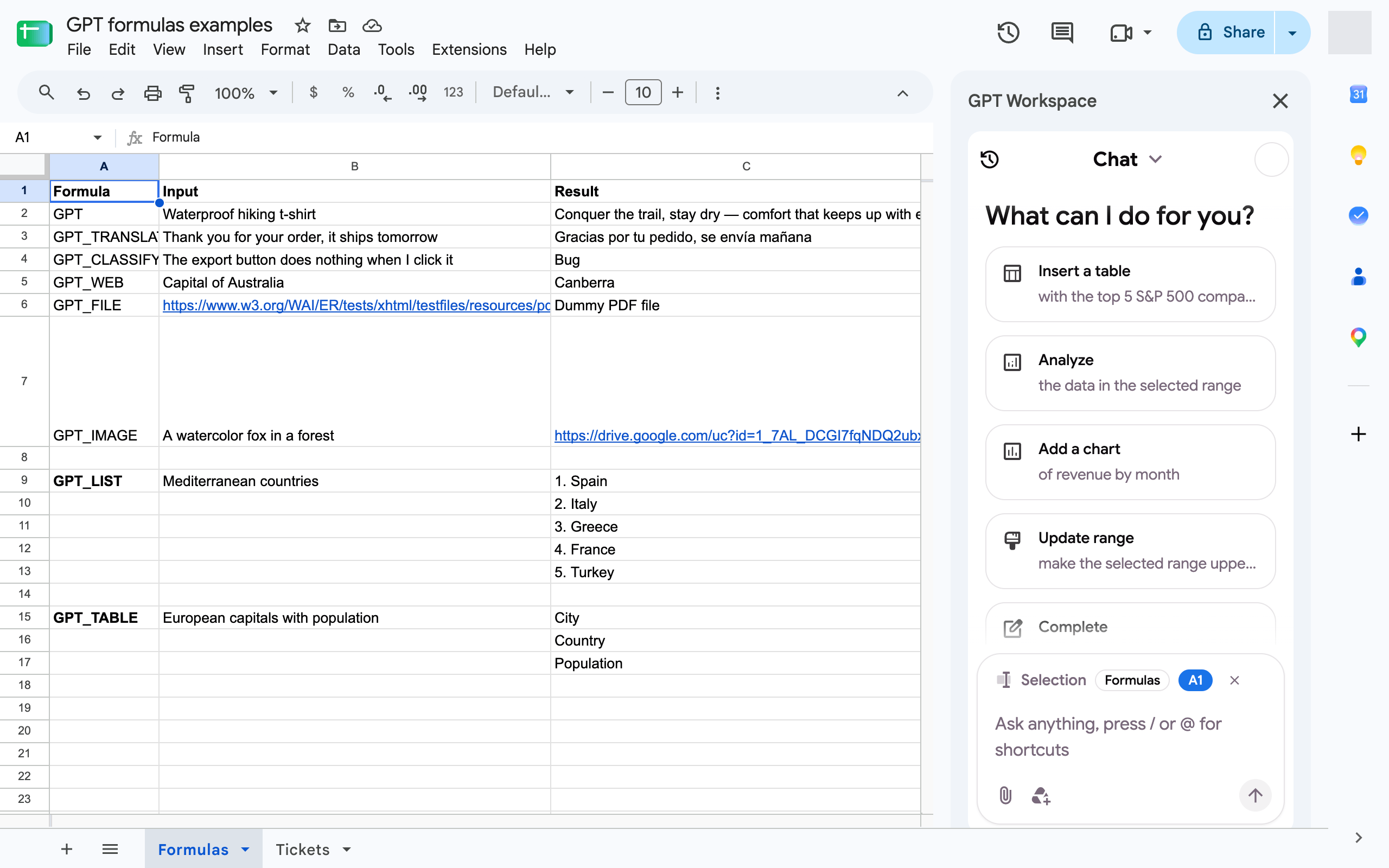
The Sheets agent reads and writes cells, applies formulas, inserts rows and columns, sorts, removes duplicates, formats, adds conditional formats, data validation, filters, charts and comments. See What the agent can do.
With the Chrome extension, the Sheets AI bar above the sheet tabs does the same from one line: Clean data, Add totals, Explain selection, or any prompt.
GPT formulas
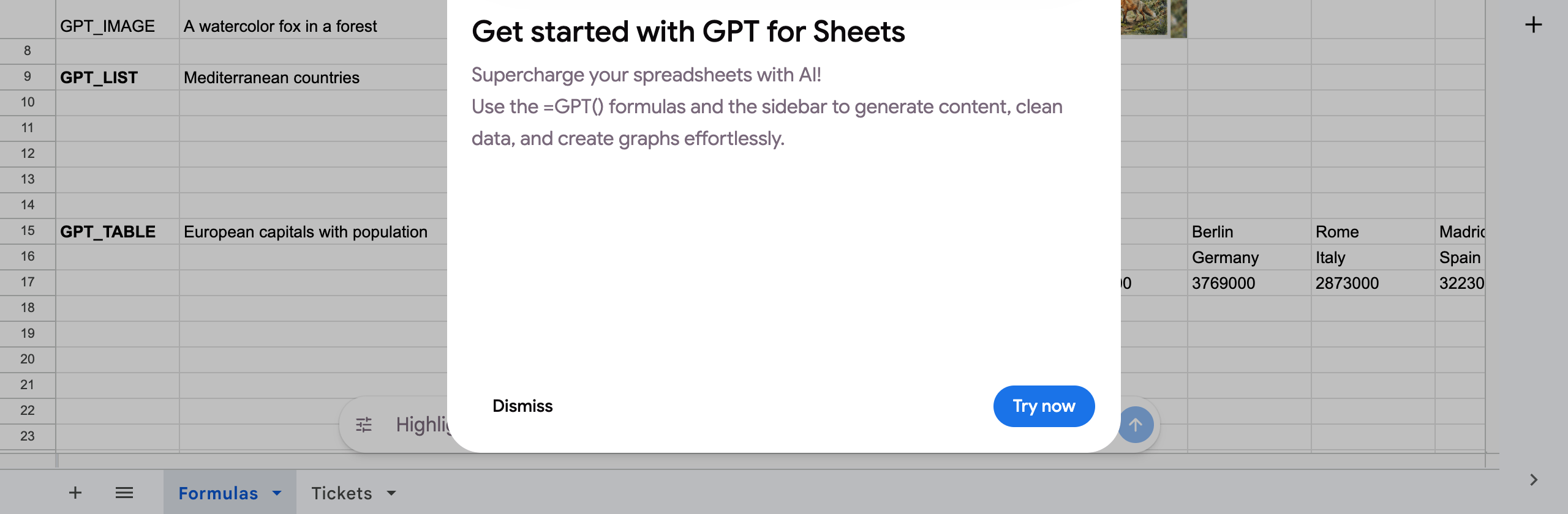
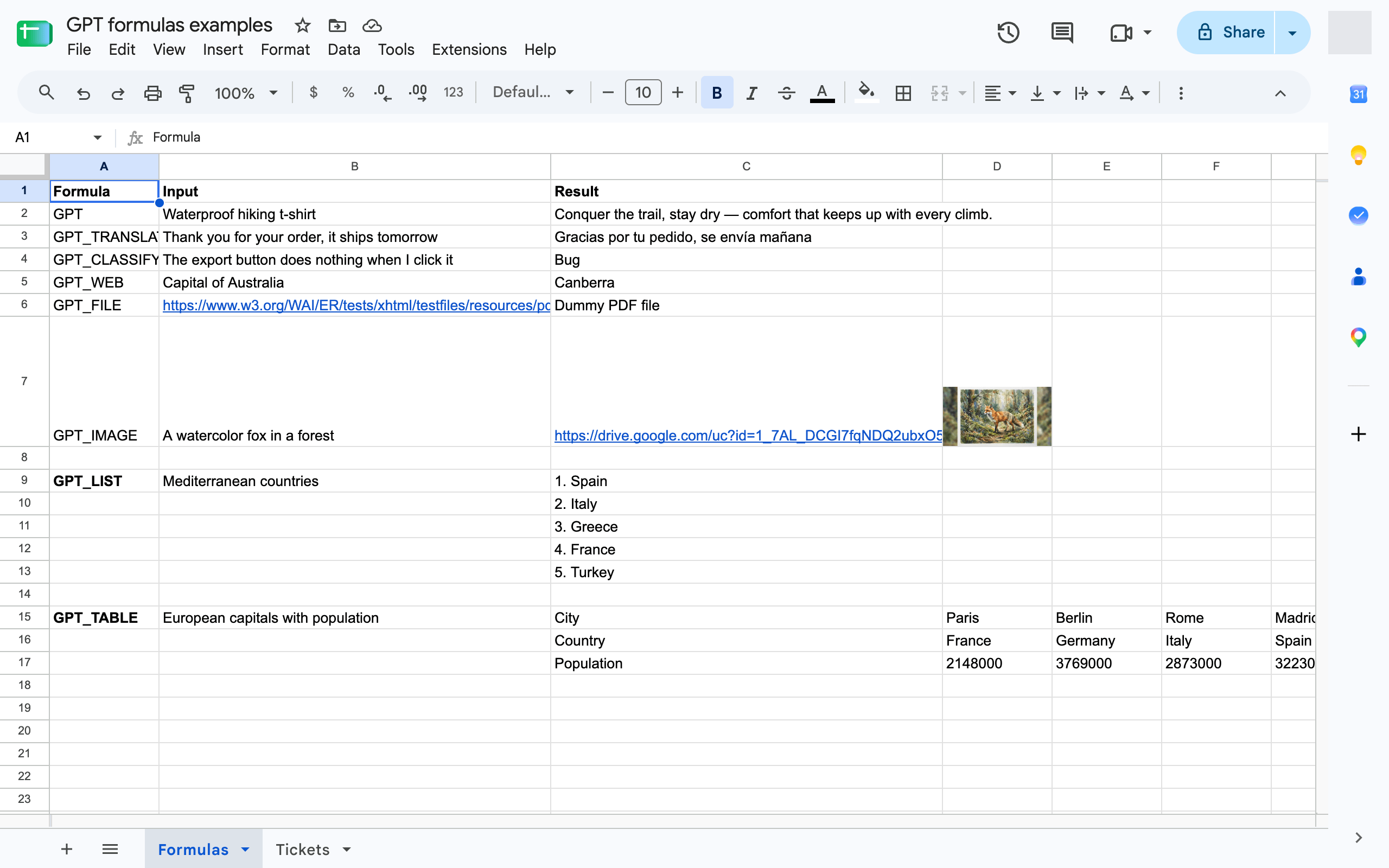
Section titled “GPT formulas”GPT formulas run AI inside a cell and fill down like any other formula: =GPT("Write a tagline for", A2), =GPT_TRANSLATE("spanish", A2), =GPT_CLASSIFY(A2, "Bug, Feature, Question"). They are part of the add-on.
Enable the formulas in a spreadsheet
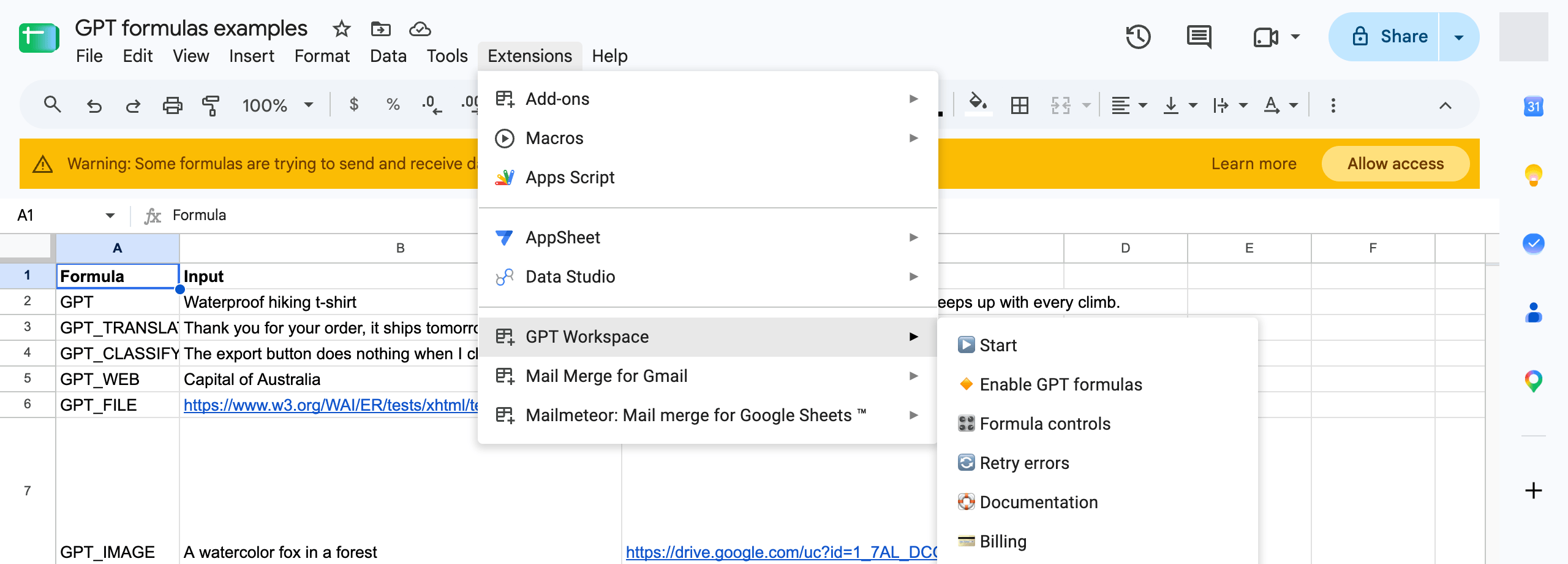
Section titled “Enable the formulas in a spreadsheet”Click Extensions ➤ GPT Workspace ➤ 🔸 Enable GPT formulas once per spreadsheet. A dialog confirms that GPT, GPT_LIST, GPT_TABLE, GPT_TRANSLATE, GPT_WEB, GPT_IMAGE, GPT_COMPLETE and GPT_CLASSIFY are available; GPT_FILE is enabled too.
If a formula shows #NAME?, the formulas are not enabled in this spreadsheet yet, see Common errors.
The formulas
Section titled “The formulas”| Formula | Use it to |
|---|---|
=GPT |
Generate text in a cell from a prompt and a cell |
=GPT_LIST |
Generate a list, one item per row |
=GPT_TABLE |
Generate a whole table |
=GPT_TRANSLATE |
Translate a cell |
=GPT_CLASSIFY |
Sort cells into your categories, with a confidence score |
=GPT_COMPLETE |
Fill in values from examples |
=GPT_WEB |
Fetch up-to-date facts from the web |
=GPT_IMAGE |
Generate an image and get its link |
=GPT_FILE |
Ask a question about a file from its URL |
The full reference is on Formulas.
Settings and controls
Section titled “Settings and controls”- Default model, temperature and output size for all formulas.
- Refresh or freeze GPT cells to regenerate values or replace formulas with their results.
- Formula controls and retry errors.
- Bulk run to fill a column from hundreds of rows in the background, with a cost preview, without a formula per cell.
Credits
Section titled “Credits”Formulas consume the monthly Sheets credits of your plan at the model’s actual cost, see What is a credit?. Standard and Pro plans can continue beyond the quota with pay per usage. Formula results are cached: the same formula with the same inputs is not charged twice unless you set bypassCache or refresh.