
Gmail features
The Chrome extension adds four things to Gmail at mail.google.com. None of them needs the Marketplace add-on.
Summarize a thread
Section titled “Summarize a thread”Open a thread and click Summarize next to the subject. The Summary card shows a short summary, the Key points and the Action items for you. Copy summary copies the text, Regenerate writes a new one.
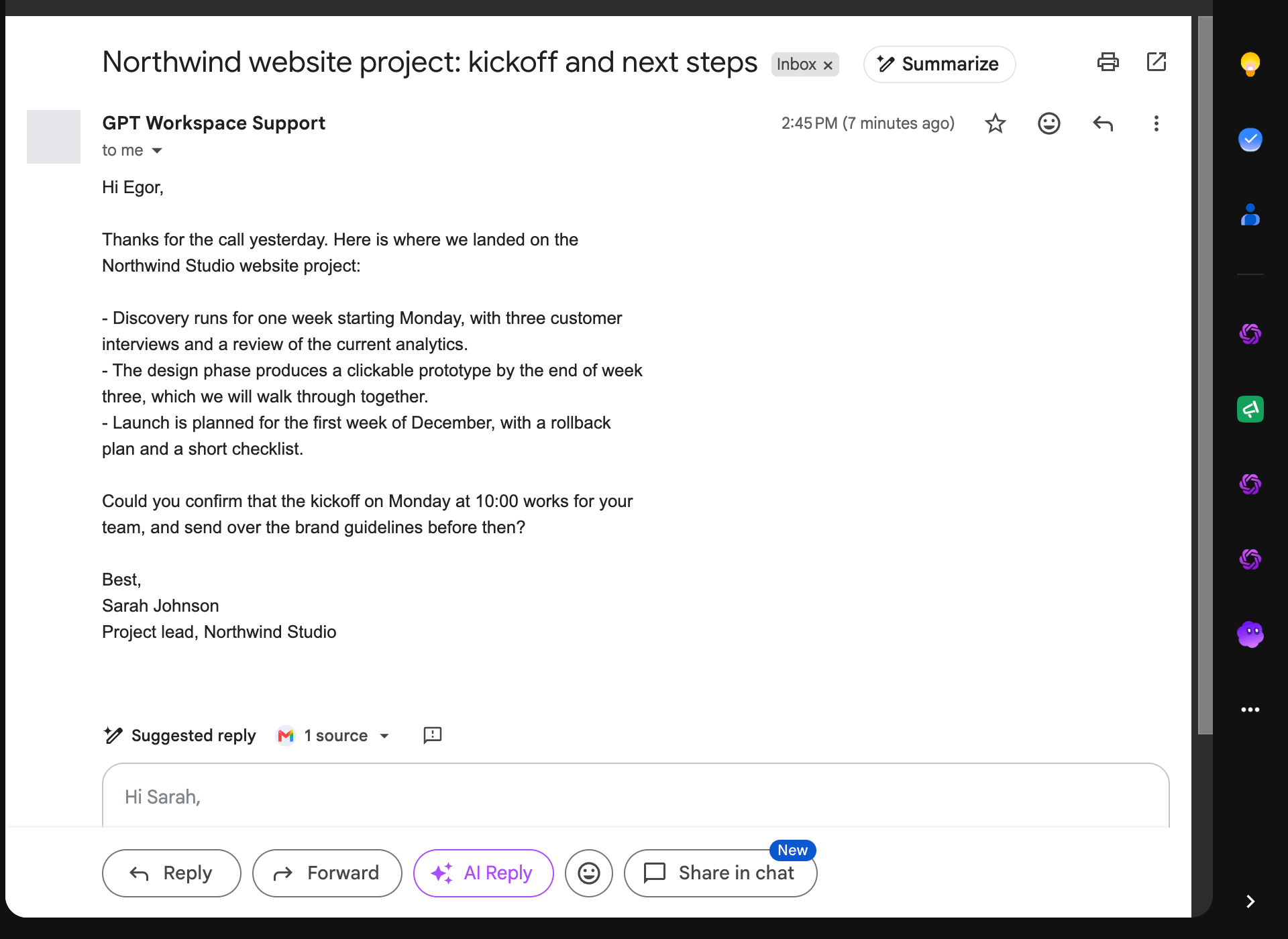
The text of the thread as shown in the page is sent for the summary; nothing is read through your Gmail account for this feature.
AI Reply
Section titled “AI Reply”AI Reply appears next to Forward on an open thread and next to Send in each compose window. It opens the reply and the side panel, where the chat offers reply suggestions and can write the full reply from your instructions.
Write bar
Section titled “Write bar”In every compose window a bar above the footer asks what to write (“Reply with a polite decline…”, “Confirm the meeting time…”). Describe the email and click Create: the draft is written from the thread (when you reply) and inserted into the message, ready to edit and send. The bar steps aside when Gmail’s own “Help me write” is open.
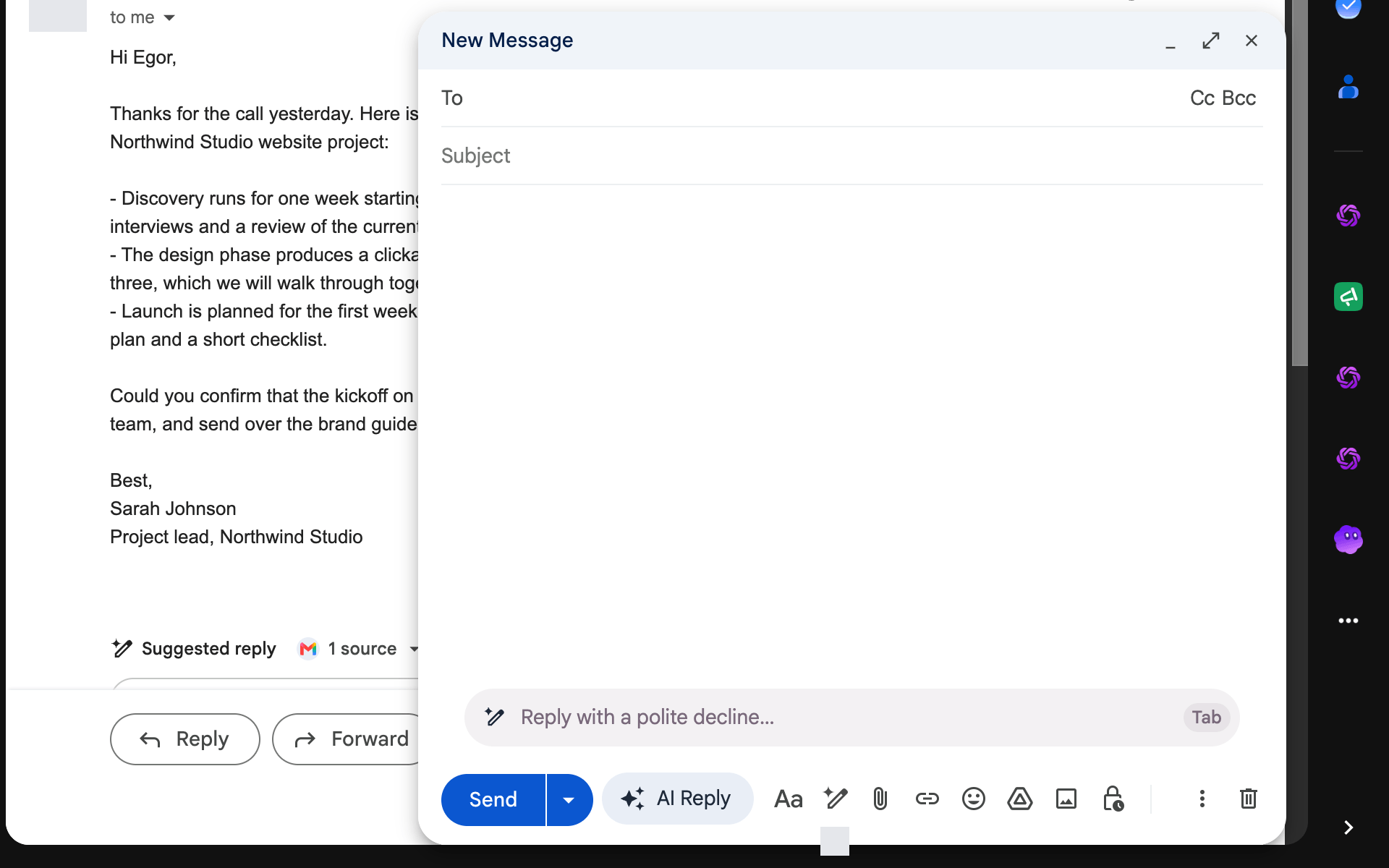
This feature reads the thread through your Gmail account, so it asks for the Gmail permission the first time (“Allow GPT Workspace to access your Gmail in the tab that just opened”).
Smart replies
Section titled “Smart replies”Under the last message of a thread, three reply chips are suggested, each with a different stance. Hover a chip to read the full reply, click it to open the reply box with that text. No chips are shown when the last message is yours, when no reply is needed, or when Gmail already shows its own suggestions. Suggestions are kept for a week per thread.
Your signature
Section titled “Your signature”A reply inserted from the side panel or the write bar is placed above the signature Gmail added to the compose window, and the quoted thread stays below it.
Accounts
Section titled “Accounts”The features work when the Gmail account of the tab is the Google account you signed in to GPT Workspace with. Otherwise they tell you: “Gmail is open as X, but GPT Workspace is signed in as Y”. Sign in to GPT Workspace with that account from the side panel.
Turning features off
Section titled “Turning features off”The Gmail features have no individual toggles. To stop them, remove the extension or use the add-on cards instead.