
GPT for Google Docs
In Google Docs, GPT Workspace writes and edits directly in the document: it inserts formatted text, tables and images, rewrites passages, translates, adds comments and suggestions. Three ways to use it:
| Way | Comes with | Opens |
|---|---|---|
| Side panel | Chrome extension | GPT Workspace icon, or Cmd+Shift+Space |
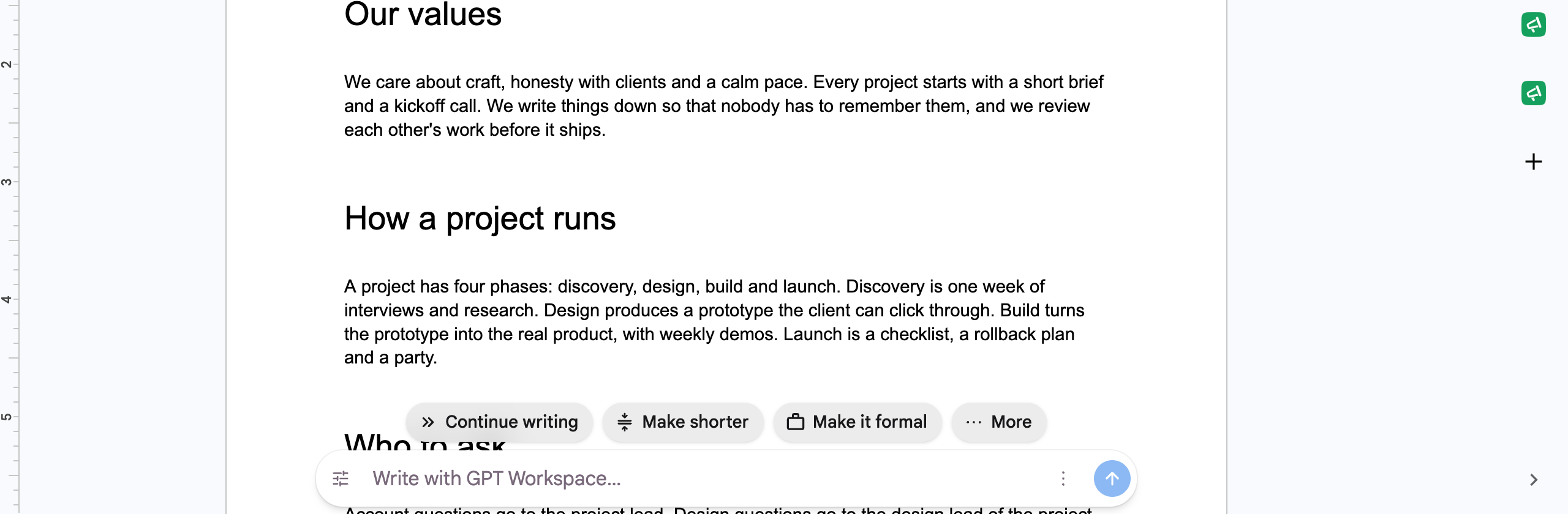
| AI bar at the bottom of the page | Chrome extension | Always visible in the editor |
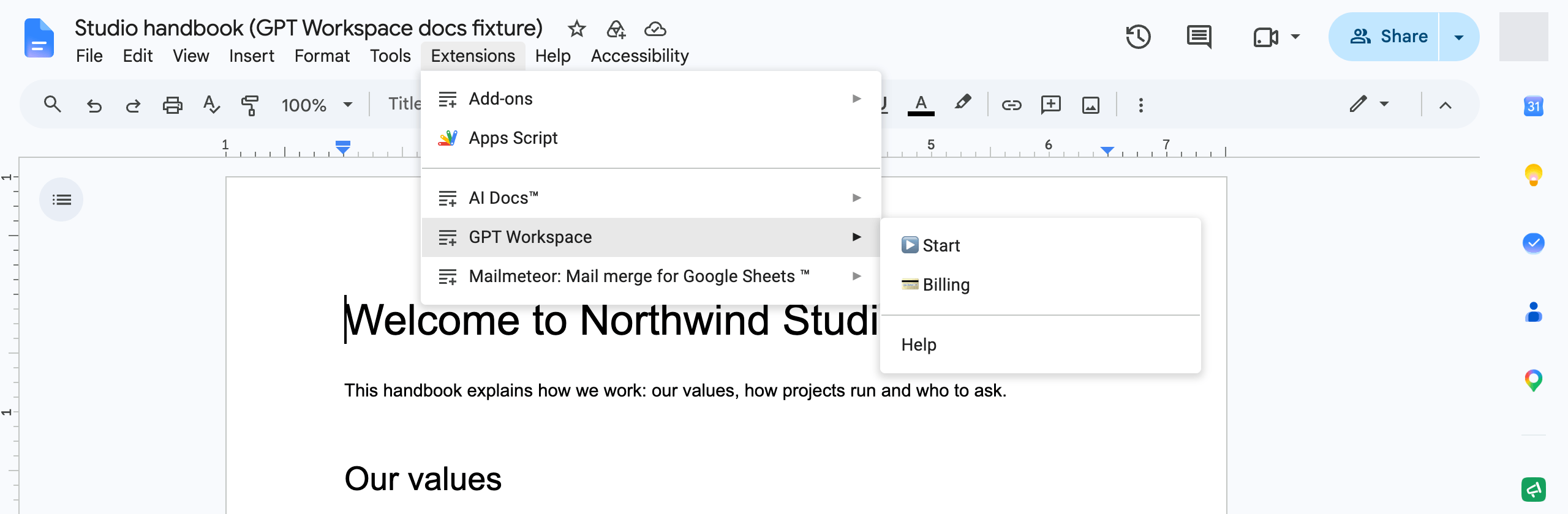
| Sidebar | Workspace add-on | Extensions ➤ GPT Workspace ➤ ▶️ Start |
Open the chat in a document
Section titled “Open the chat in a document”With the add-on, click Extensions ➤ GPT Workspace ➤ ▶️ Start.
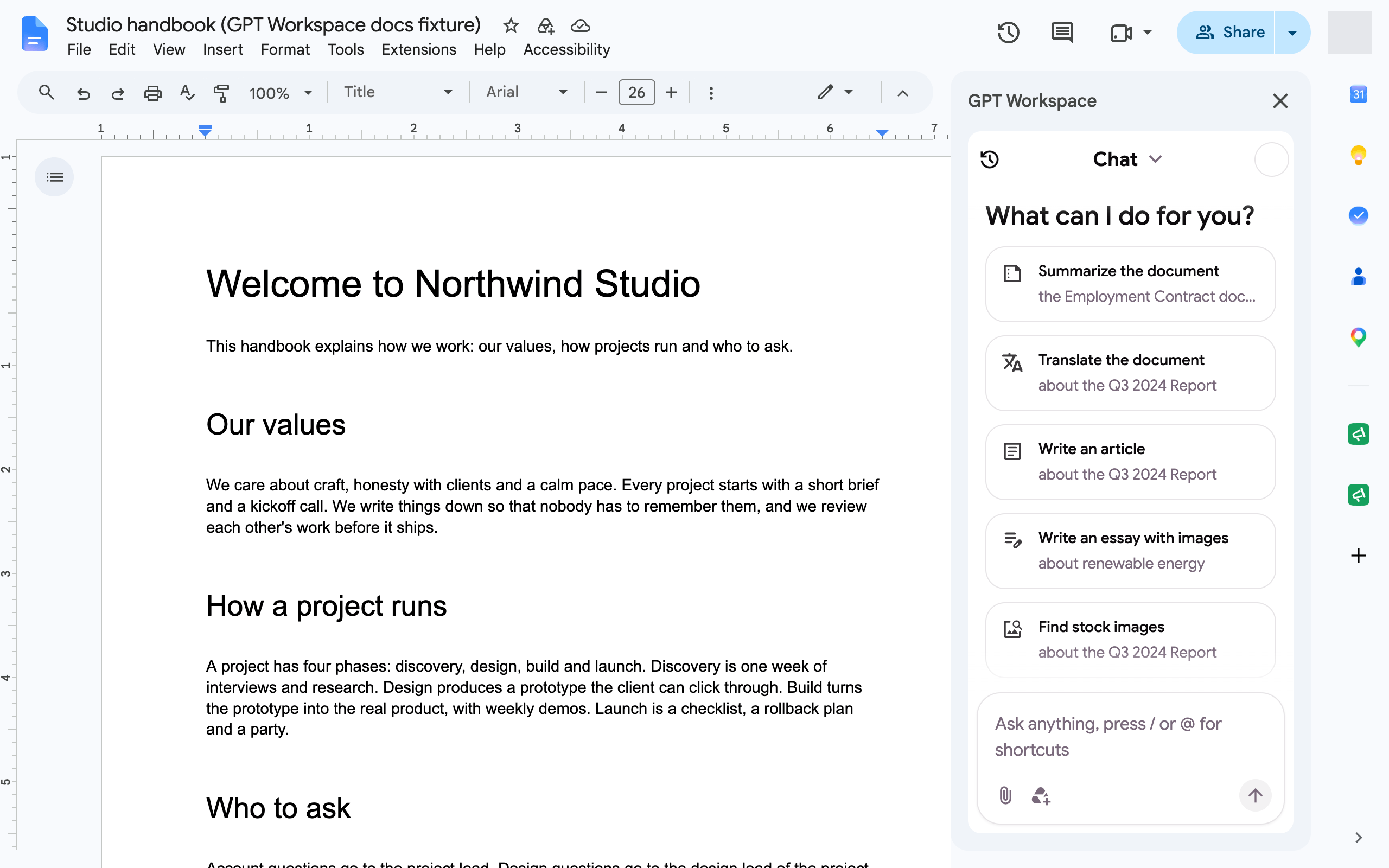
The chat opens next to the document with starters for writing: an essay with images, an employment contract, an article, stock images, a summary at the top of the document or a translation that keeps the formatting.
What you can ask
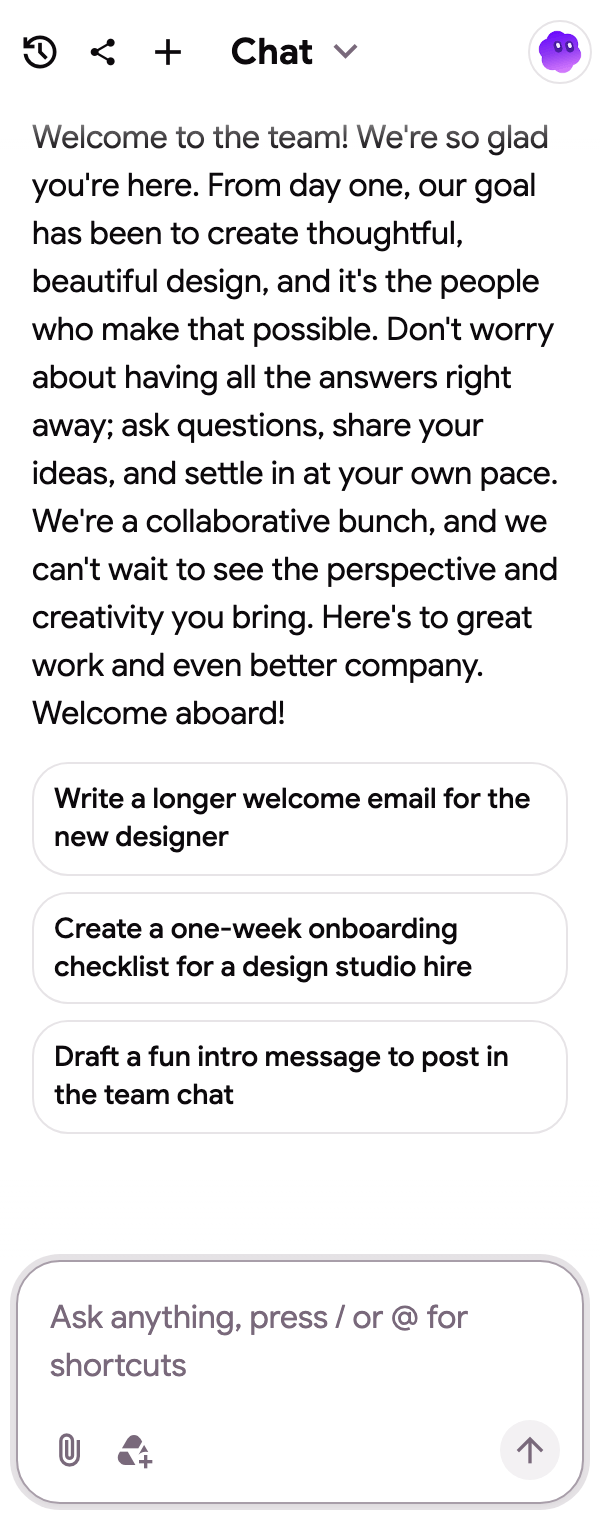
Section titled “What you can ask”Select a passage first to work on it, or ask about the whole document.
- “Summarize the document in five key points at the top”
- “Translate the document to Spanish, keeping the formatting”
- “Rewrite the selected paragraph in a more formal tone”
- “Insert a table comparing the three options”
- “Add a comment on every claim that needs a source”
- “Propose the changes as suggestions instead of editing”
The full list of what the Docs agent can do is on What the agent can do. Snippets such as Rephrase, Fix spelling and grammar or Change tone are one key away, see Snippets.
The AI bar
Section titled “The AI bar”With the Chrome extension, a bar at the bottom of every document gives one-click chips (Continue writing, Make shorter, Make it formal, translations) and a prompt box that edits the document in place. See Docs AI bar.
Review what changed
Section titled “Review what changed”In the side panel, the Open file version history button opens Google’s version history so you can compare and restore. Everything the agent writes is a normal edit in the document, so Undo works too.