
Chat overview
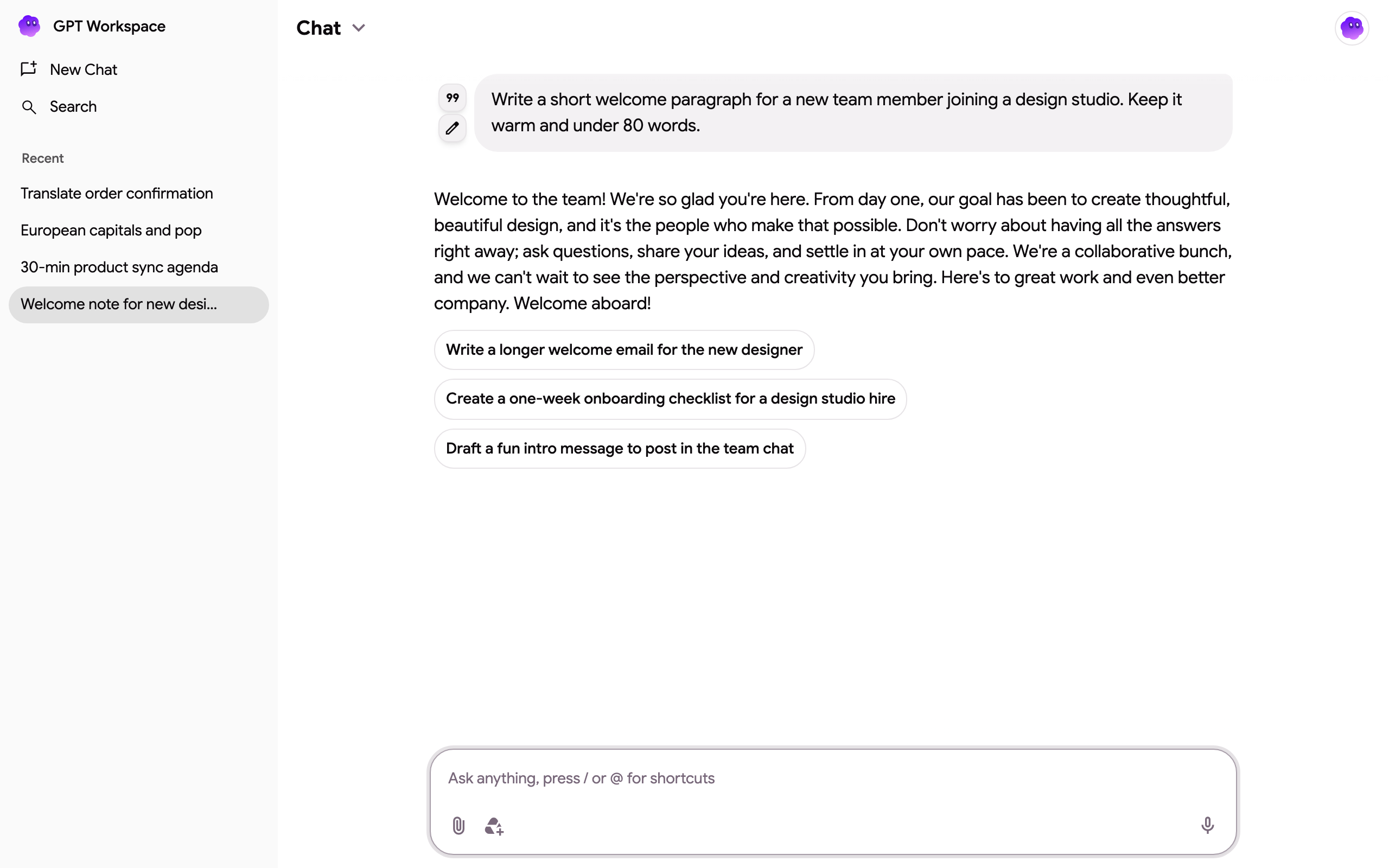
The chat is the same everywhere: at gpt.space/app, in the Chrome extension side panel, in the add-on sidebar of Docs, Sheets, Slides and Forms, and behind the Google Chat app. It is an agent: it reads and edits your Google files, mail, calendar and tasks through tools, searches the web and generates images. What it can do in each app is on What the agent can do.
The message box
Section titled “The message box”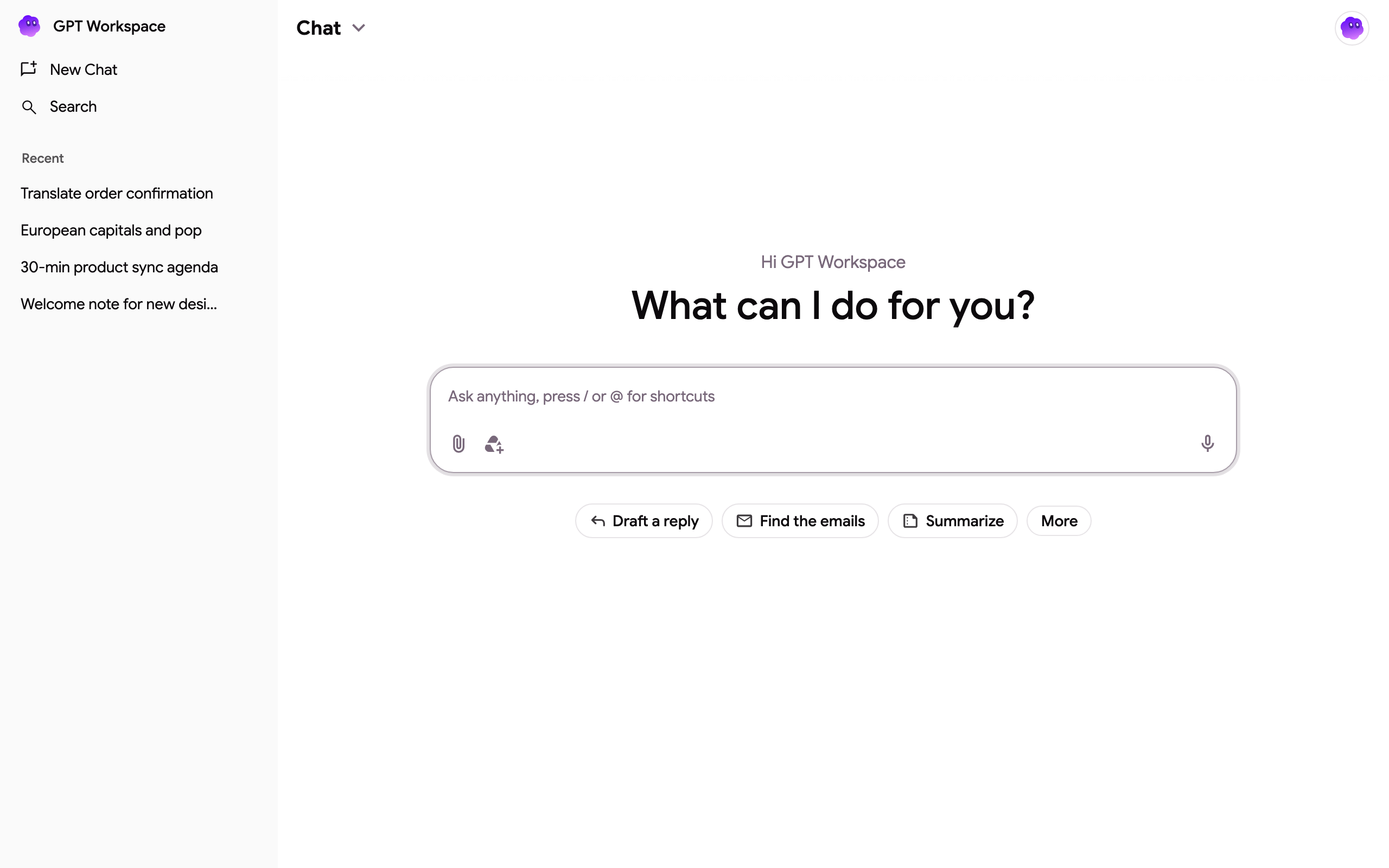
- Type anything. The agent answers in the language you write in. After an answer it suggests follow-up prompts you can click.
- / opens the snippets: reusable prompts such as Rephrase, Summarize, Translate to or Change tone.
- @ searches your Google Drive and attaches the file to the message. Grant Drive access the first time.
- Attach file (paper clip) uploads up to 10 files of up to 30 MB each: documents (pdf, docx, pptx, txt, md, csv, json, html), code files and images (png, jpg, webp). You can also drag files onto the chat.
- Add Drive file opens the Google Drive picker for Docs, Sheets, Slides, PDFs and images.
- Voice input (microphone) dictates your message in browsers that support speech input.
- Open file version history (Chrome extension only) opens Google’s version history of the current Docs, Sheets or Slides file, useful to review what the agent changed.
Conversation starters
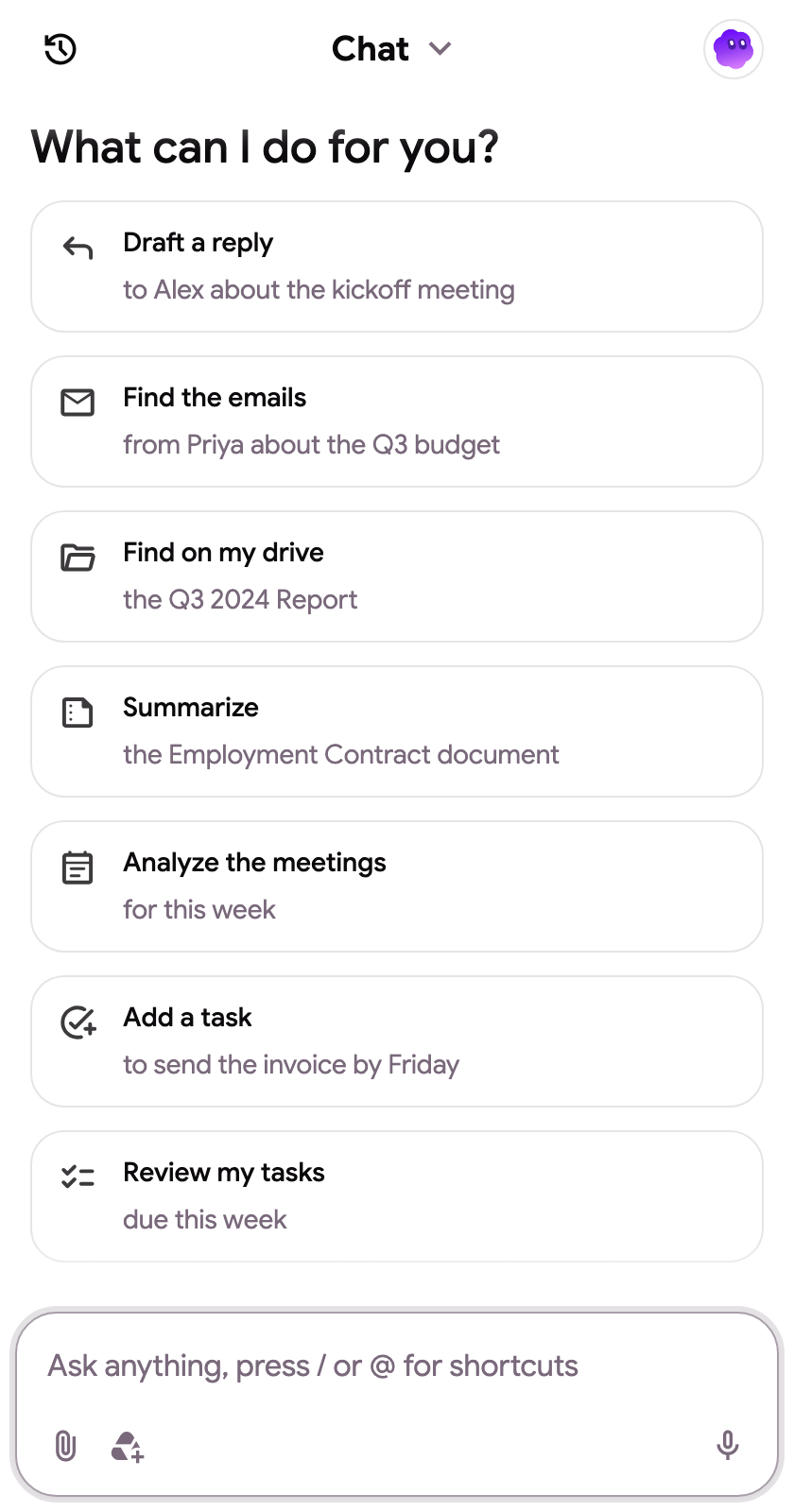
Section titled “Conversation starters”The starters under the message box depend on where you are: writing and translating in Docs, data and charts in Sheets, deck generation in Slides, finding and replying to emails in Gmail, files in Drive, meetings in Calendar, forms in Forms, and summarizing the current page or YouTube video in the extension. Their subtitles are personalized from your recent mail and files. Click More for the full list.
Threads
Section titled “Threads”Every conversation is a thread, listed in the left sidebar (the clock icon in the side panel). New Chat starts a fresh one, Search finds a past one by its content. From the ⋮ menu of a thread you can Share, Pin chat (pinned threads stay at the top) and Delete.
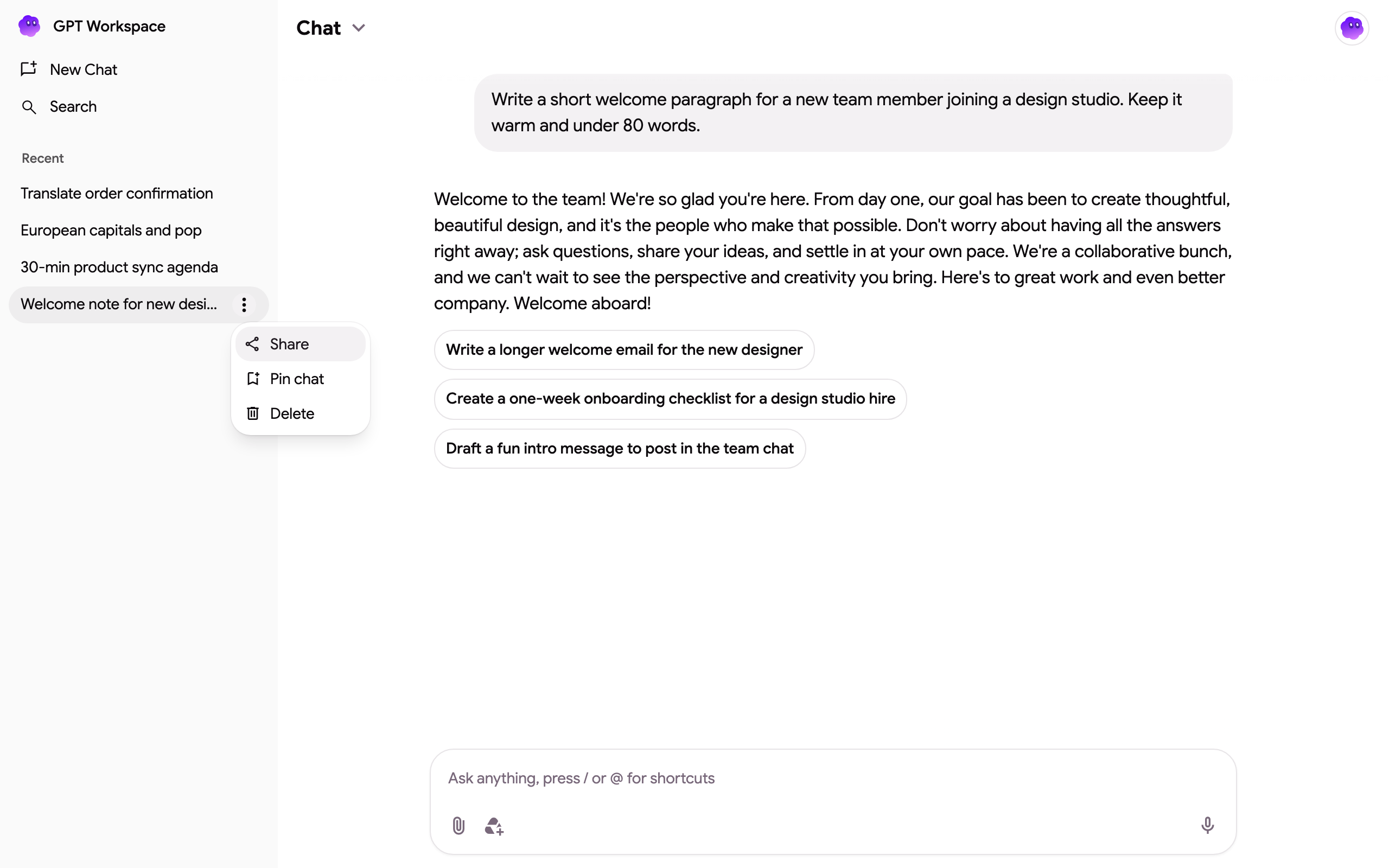
Sharing is described on Sharing a chat.
Edit a message and branches
Section titled “Edit a message and branches”Hover a message you sent and click the pencil to edit it. The agent answers again from that point and the thread branches: use the Previous version and Next version arrows (shown as “1 / 2”) to move between branches. Hover an answer to copy it or quote it in your next message.
Projects
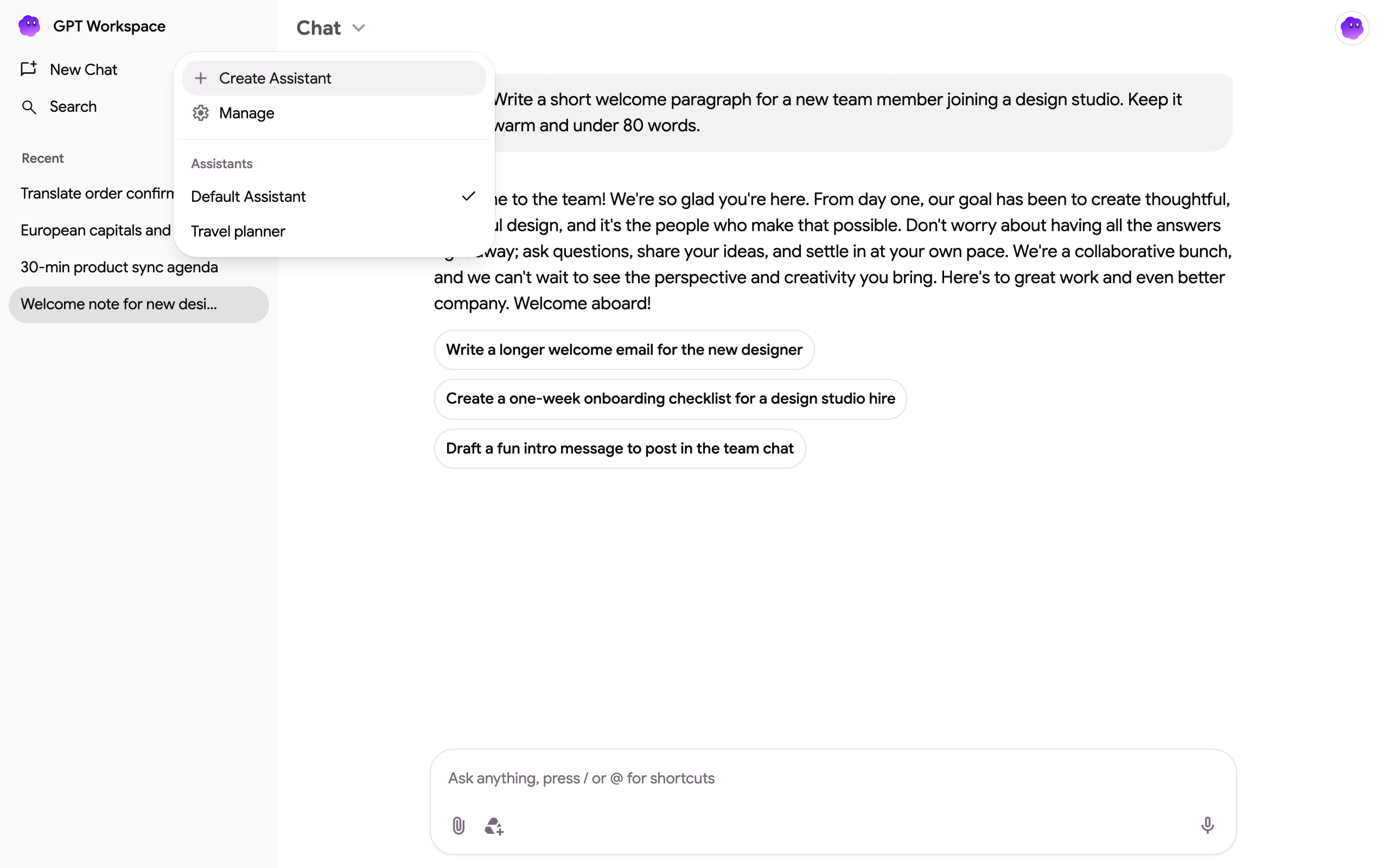
Section titled “Projects”The Chat ⌄ menu at the top switches between the plain chat and your projects: chats with their own instructions, memory and Drive knowledge.
Account menu
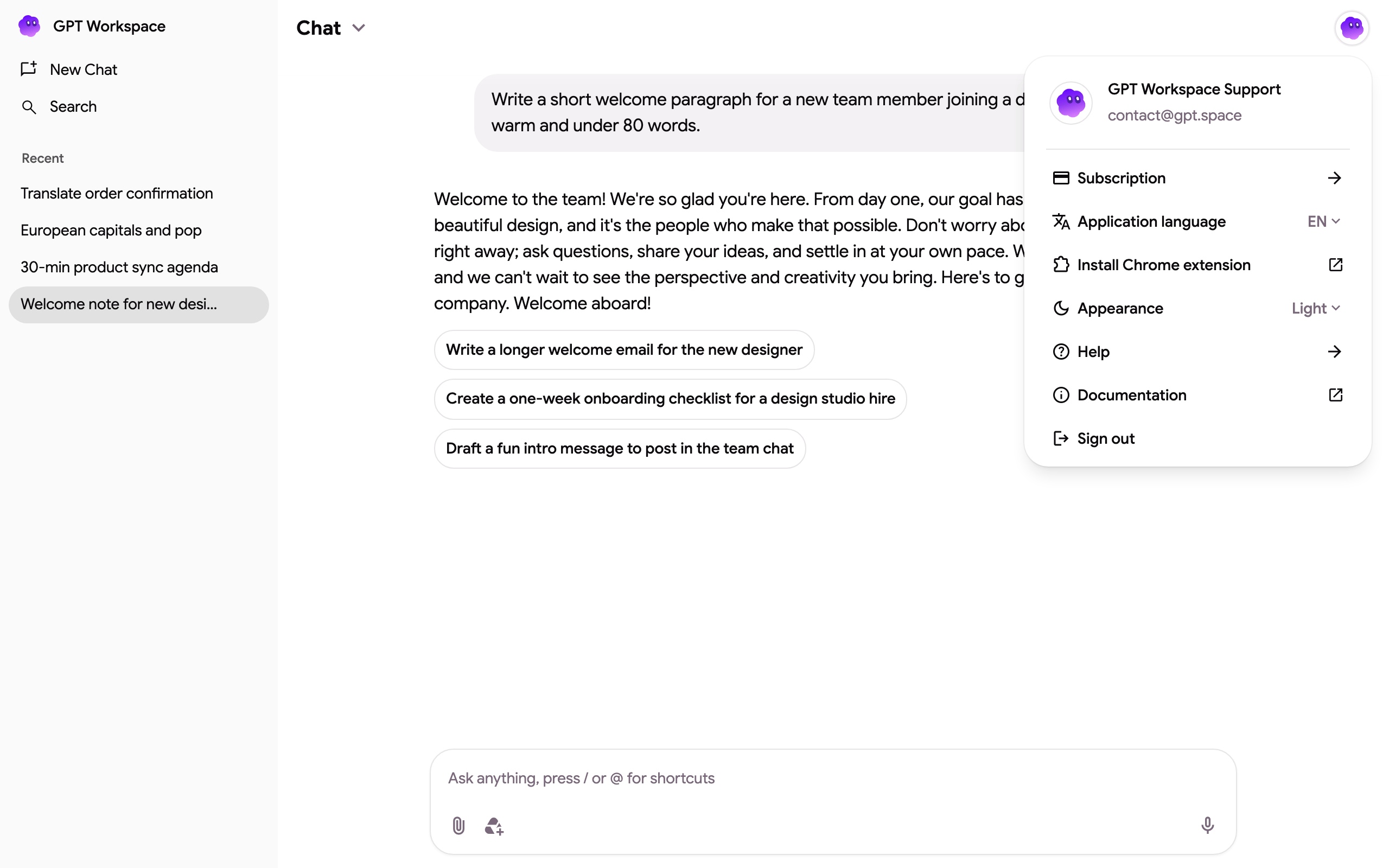
Section titled “Account menu”The avatar in the top-right corner opens the account menu: subscription, interface language, Chrome extension, appearance, help, documentation and sign out. See Settings.
Credits
Section titled “Credits”Every answer is charged at the actual cost of the model that produced it, see What is a credit?. Standard and Pro plans include unlimited chat. When a free or Starter account runs out of credits, the message box shows Upgrade Plan, Top up credits and Get Free Credits until the monthly quota resets.