
GPT_TABLE formula
Generate a full table of data with =GPT_TABLE
Section titled “Generate a full table of data with =GPT_TABLE”You can generate a full table of data with GPT for Sheets, you can specify the number of columns too!
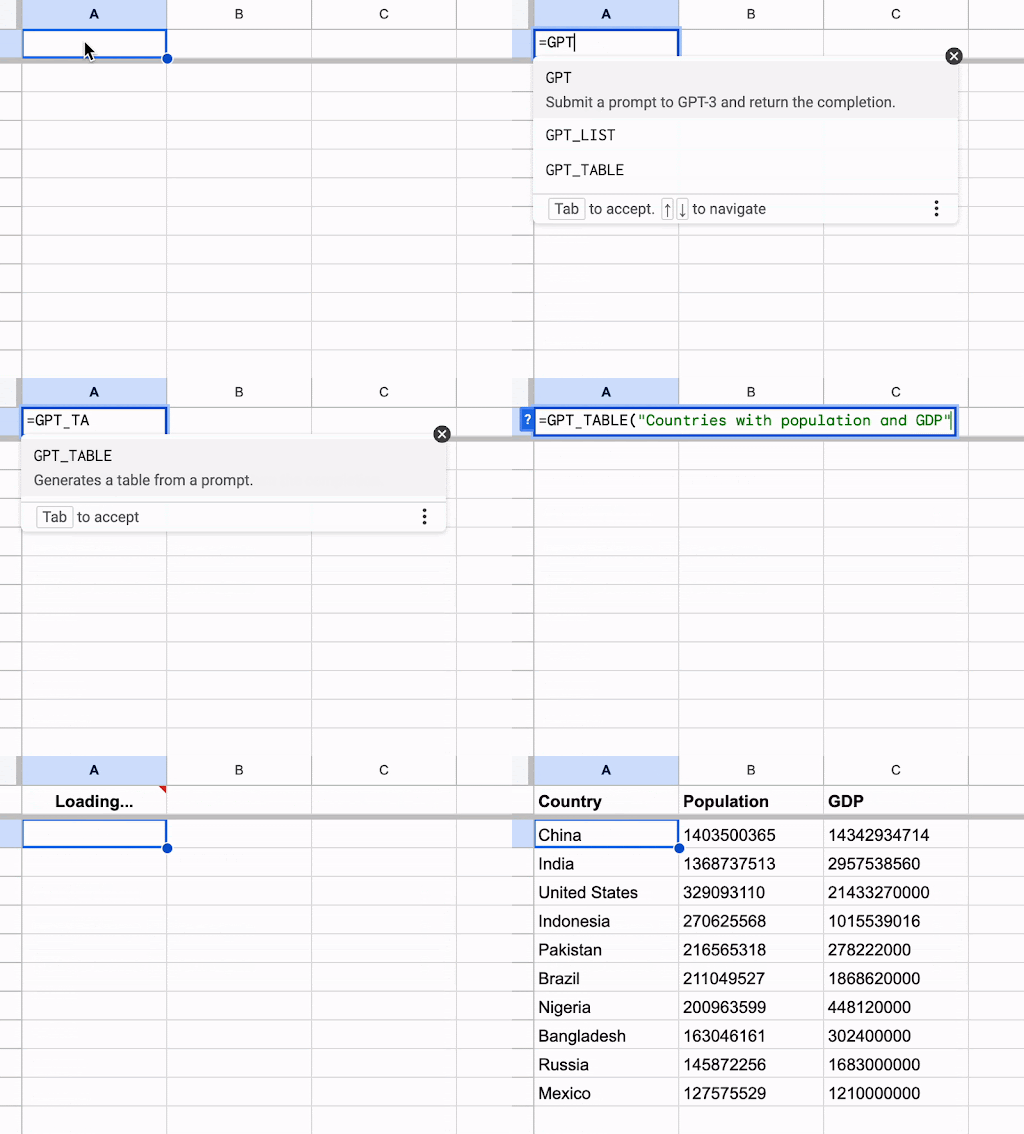
To get started, select a cell and input then use the following formula
=GPT_TABLE(prompt, value, temperature, model, cache)
| Parameter | Description | Default |
|---|---|---|
prompt | the prompt describing the data you want to generate. (ex: "write a tagline for a waterproof t-shirt brand") required | "" |
value | The cell you are referring to in your prompt (ex: A1) | null |
temperature | Between 0 (not creative) and 2 (very creative) | 0 |
model | standard (GLM 5.2, 1 credit/token) or advanced (GLM 5.2 nitro, 5 credits/token, paid plans) | standard |
bypassCache | Bypass the cache and query openai again. The results will be differents than before. | false |